
The Box Contents screen is where you pack your FBA shipment and tell Amazon exactly what is in each box. This guide covers every feature on the screen, from packing and printing labels to box weights, presets and imports.
Your boxes run across the top, starting with a single empty box. Below them is the Pack List: every item in the shipment, waiting to be packed. The job is simple: get every item into a box.
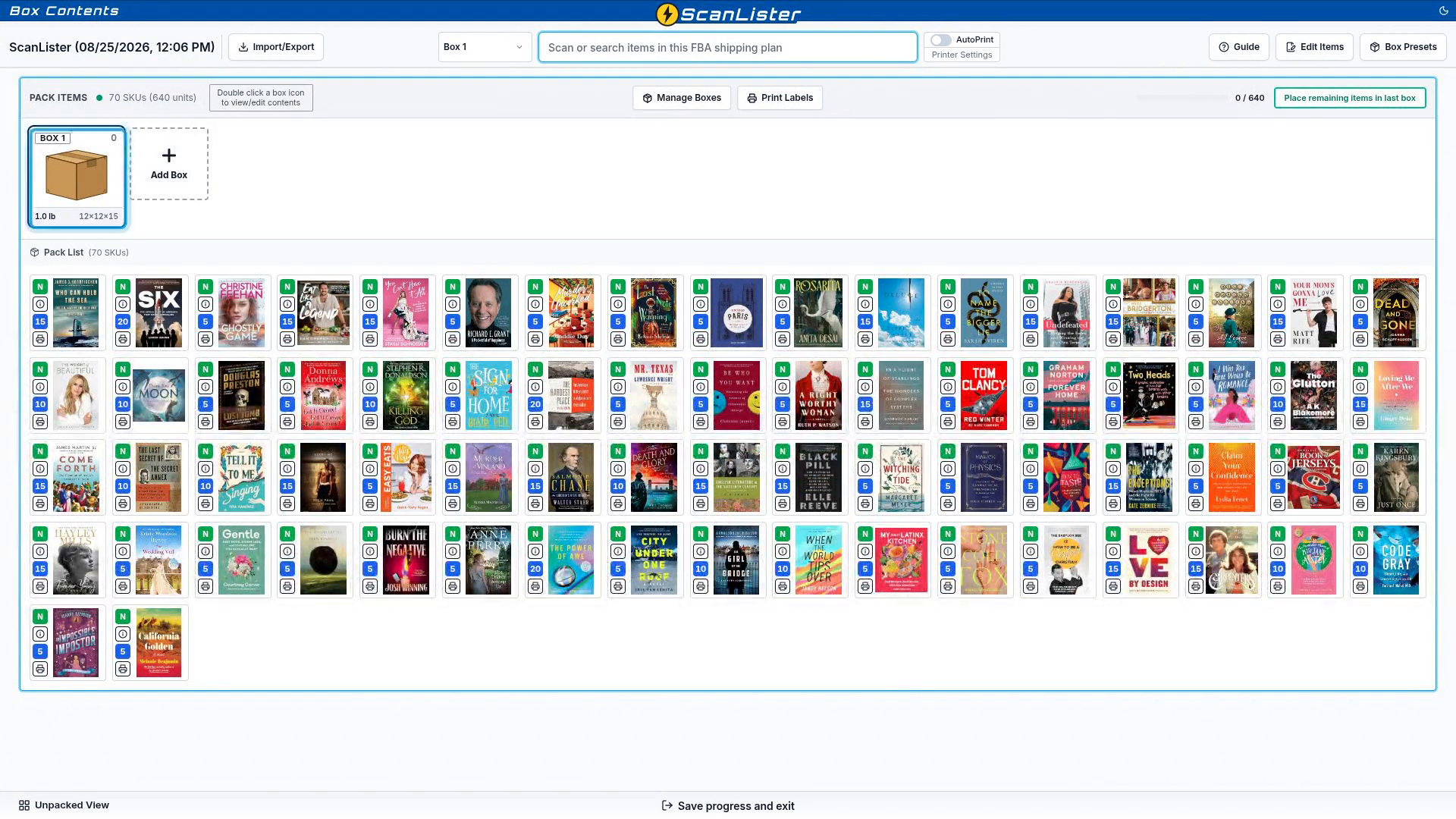
The progress bar at the top right tracks packed units against the total, so you always know how far along you are.
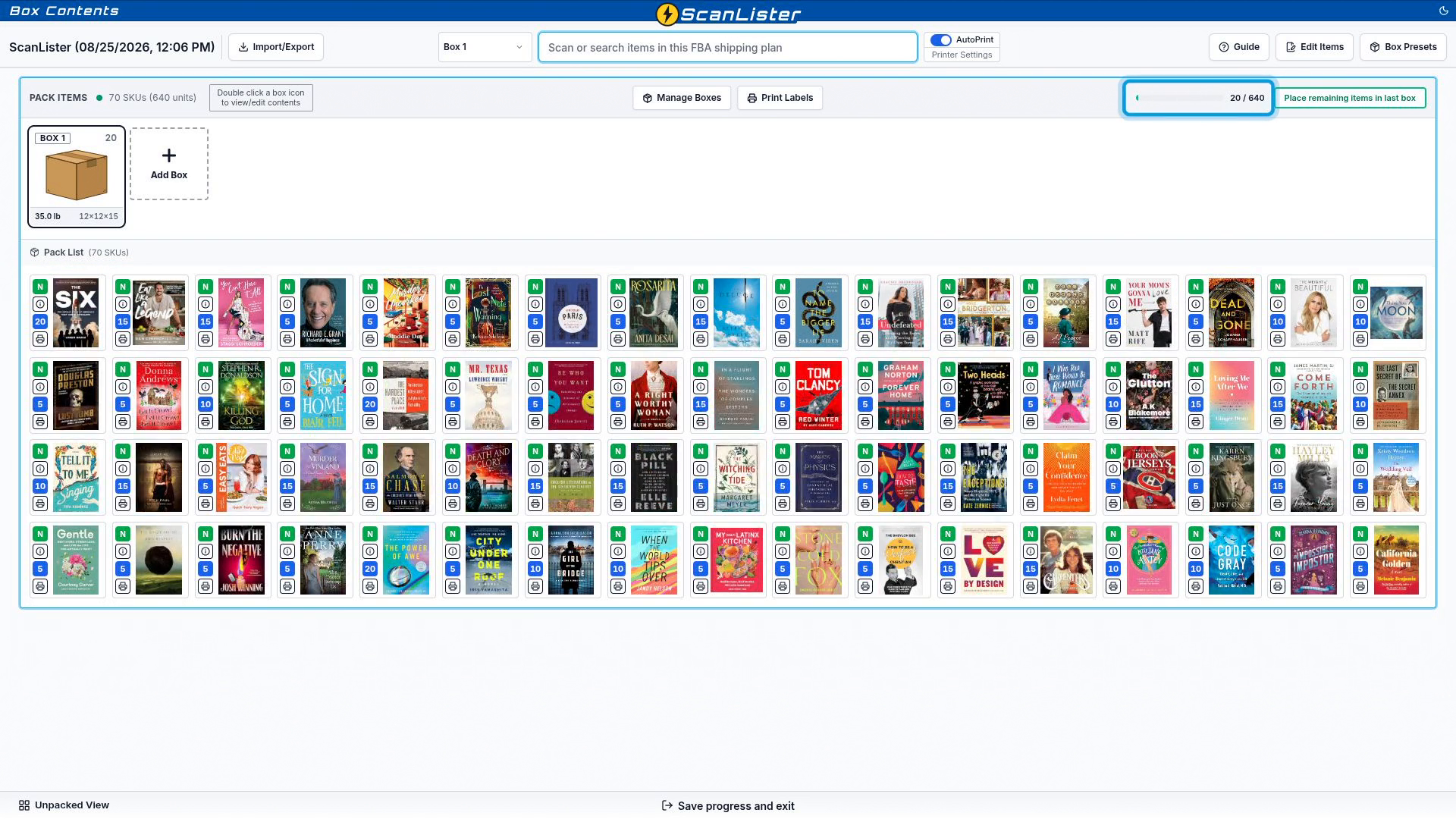
Scanning is the fastest way to pack. With a box selected, scan an item into Scan or search items in this FBA shipping plan and it goes straight into that box.
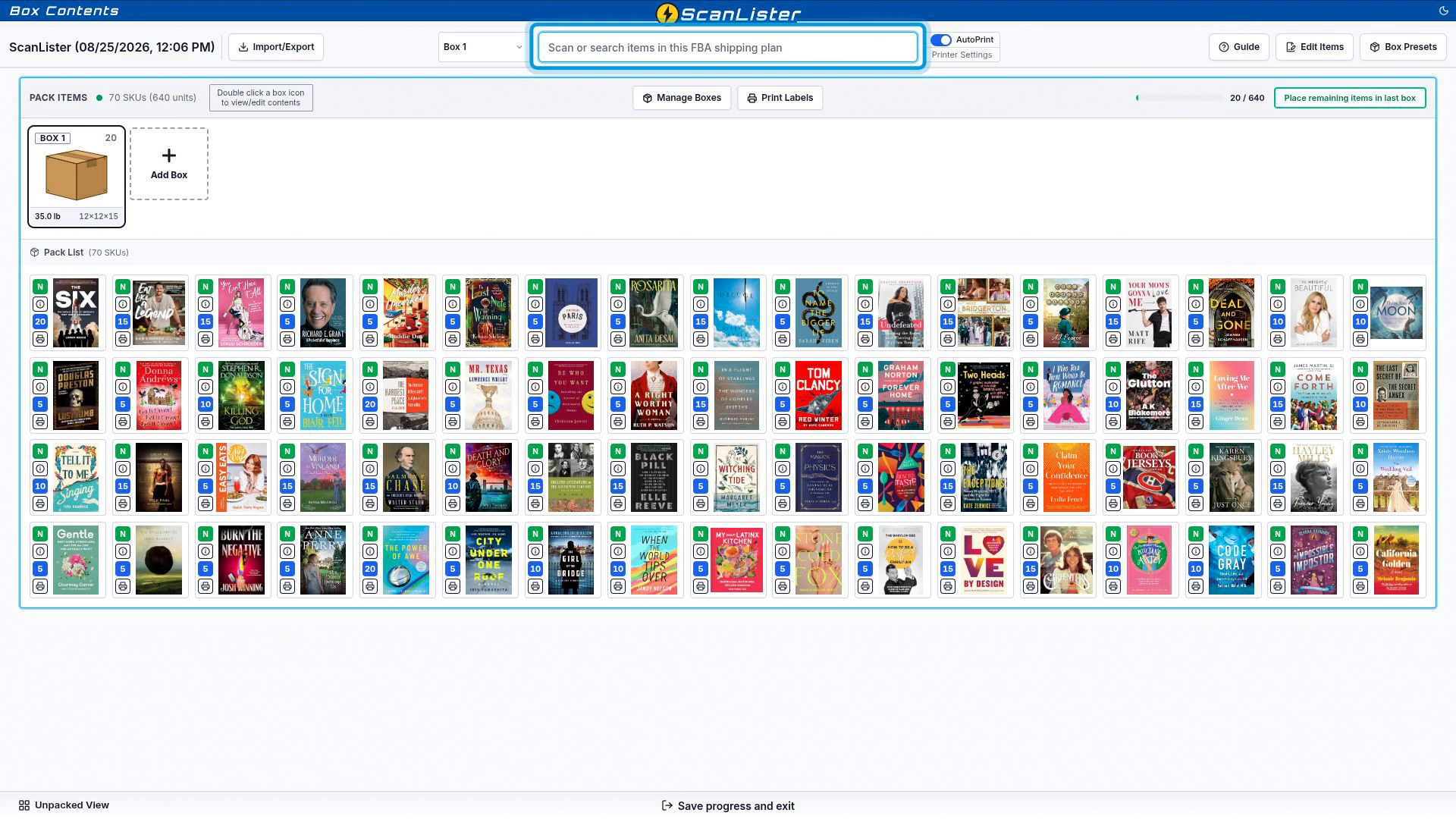
If you have a thermal printer, turn on AutoPrint. Scan the item, the label prints, stick it on and put the item in the box. Repeat until the box is full.
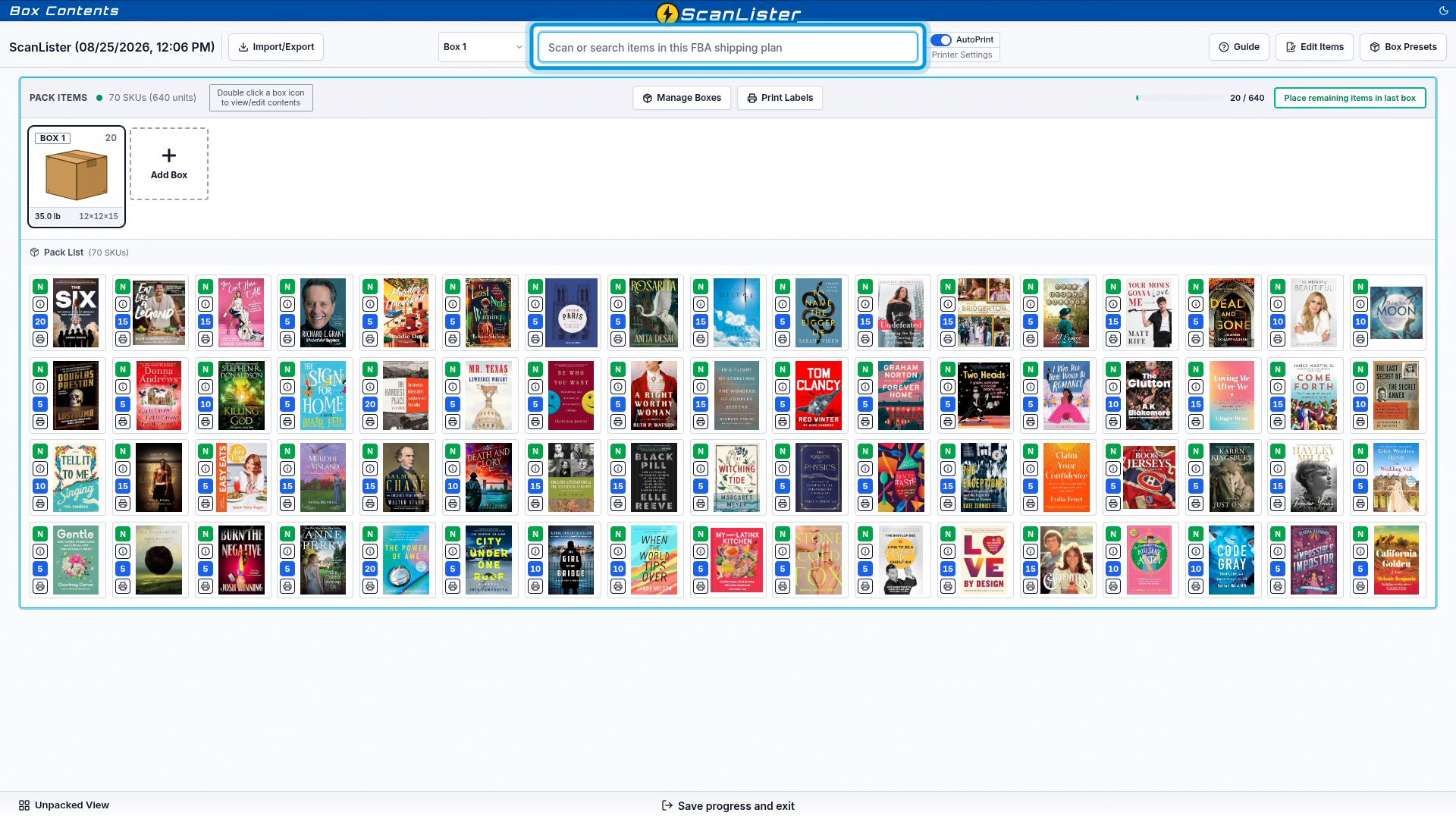
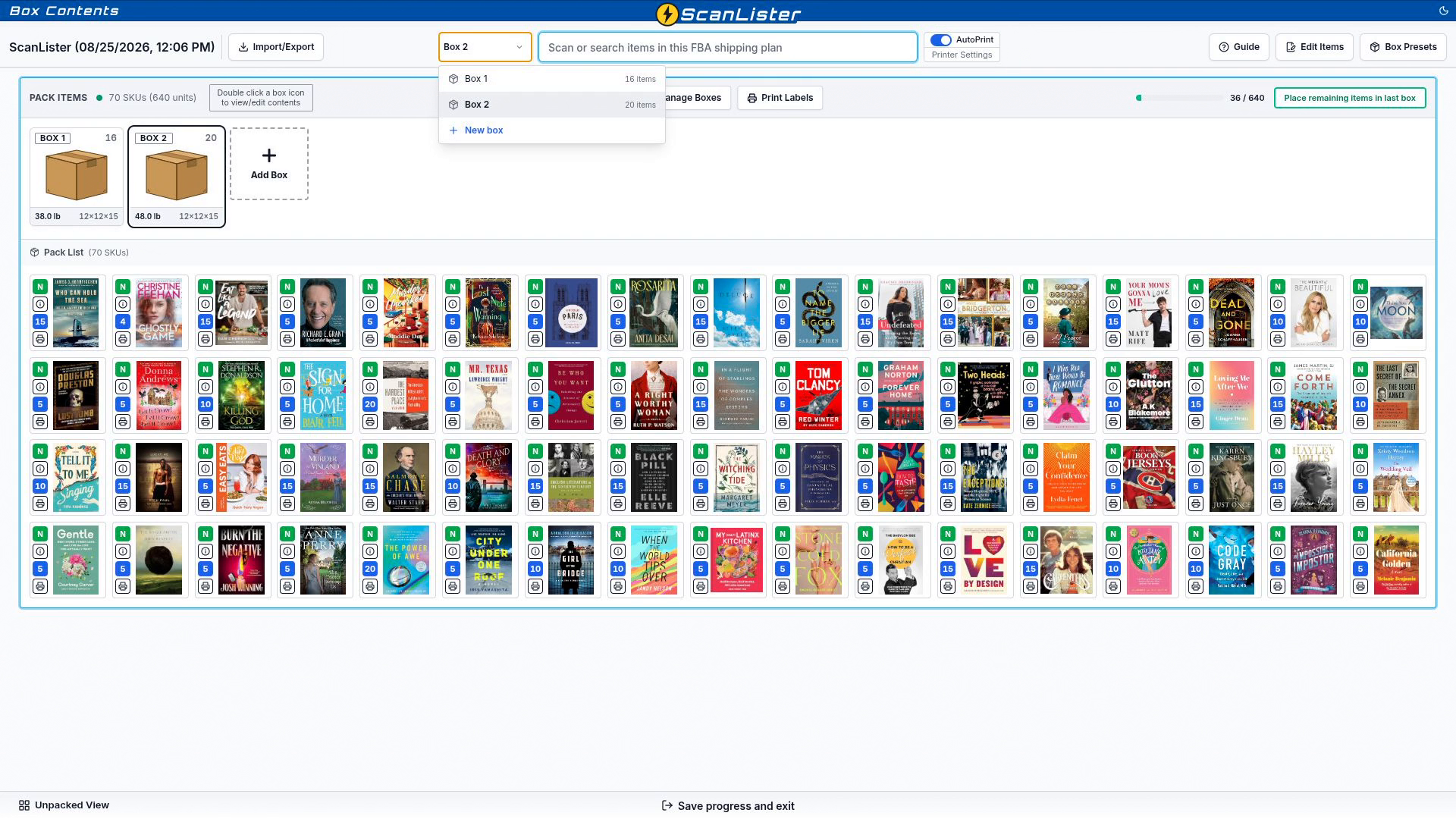
When a box is full, choose New box from the box dropdown and you are scanning into Box 2. To switch back, pick Box 1 again. A box needs at least one item before you can add the next one.
Click an item's picture, hold the mouse button and drop it on a box. If the item has more than one unit, ScanLister asks how many go in. Type a number, or click All, then click Pack.

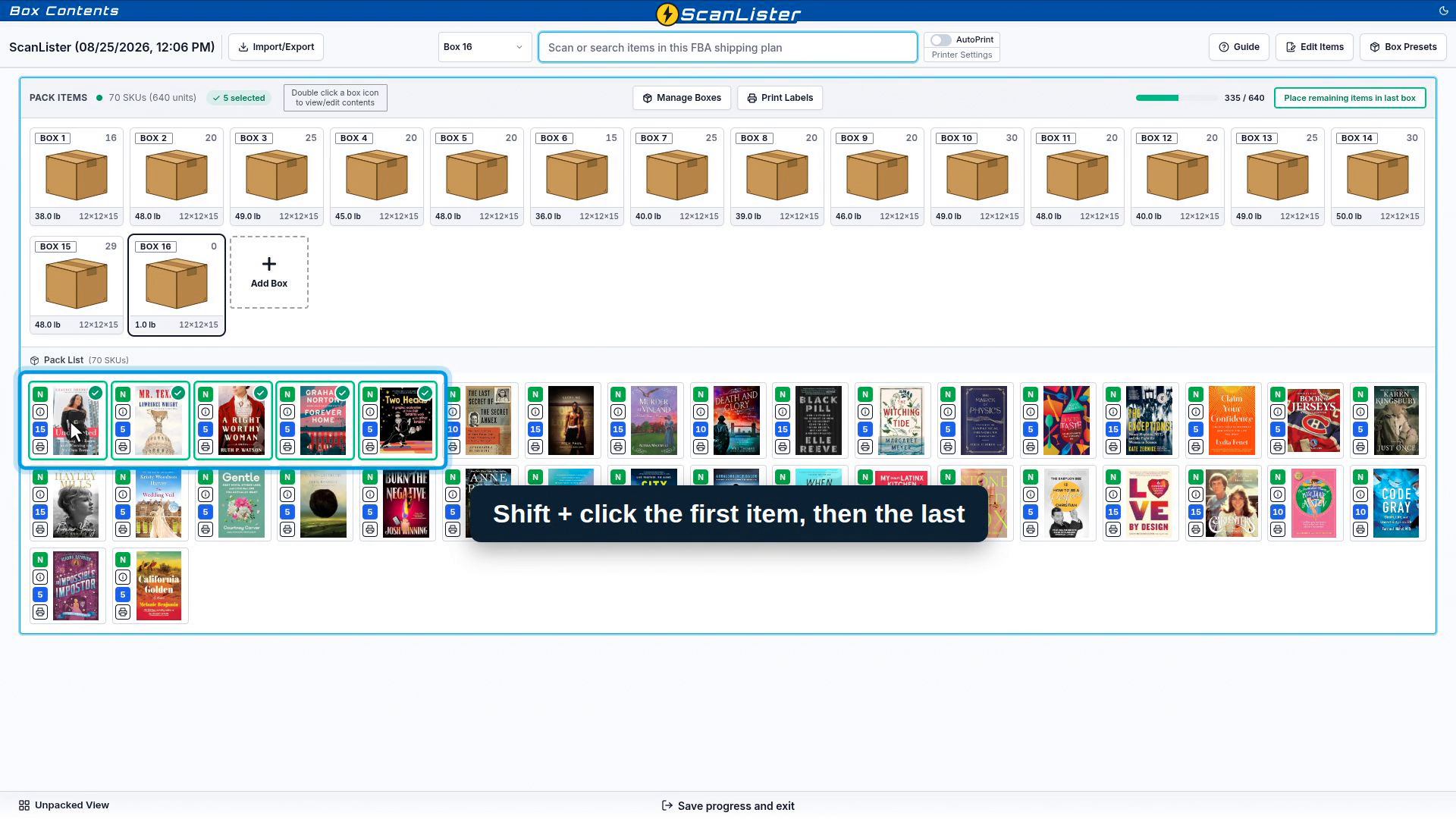
To move several items at once, hold Shift and click the first item, then the last. The whole range is selected, and you can drag the group into a box together. Single units go straight in; items with more than one unit still ask how many.
AutoPrint works with drag and drop too. Either way, labels print as items are packed.
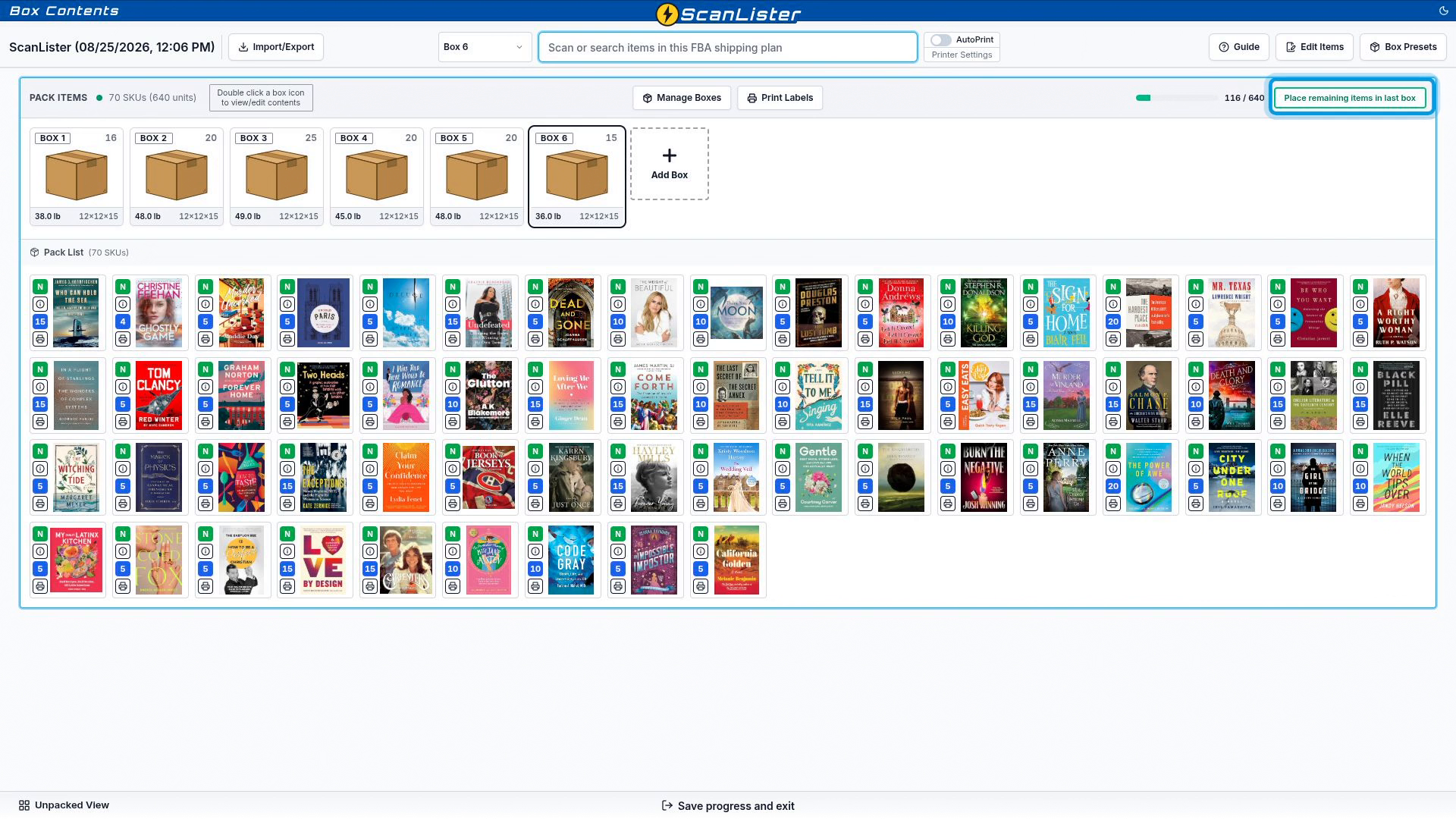
This button does exactly what it says: everything left goes into the last box in one click.
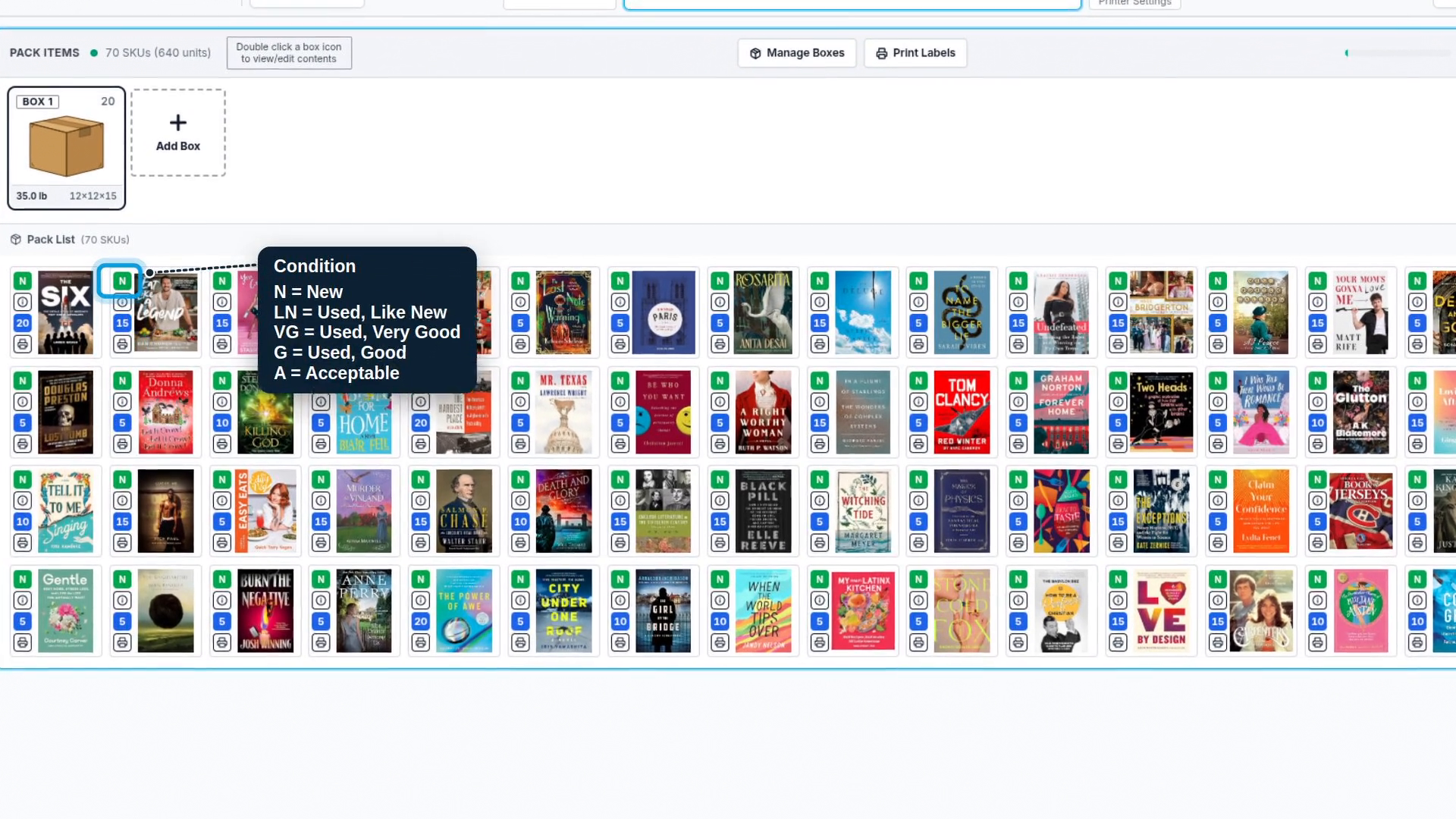
Each item in the pack list has a row of icons beside its picture:

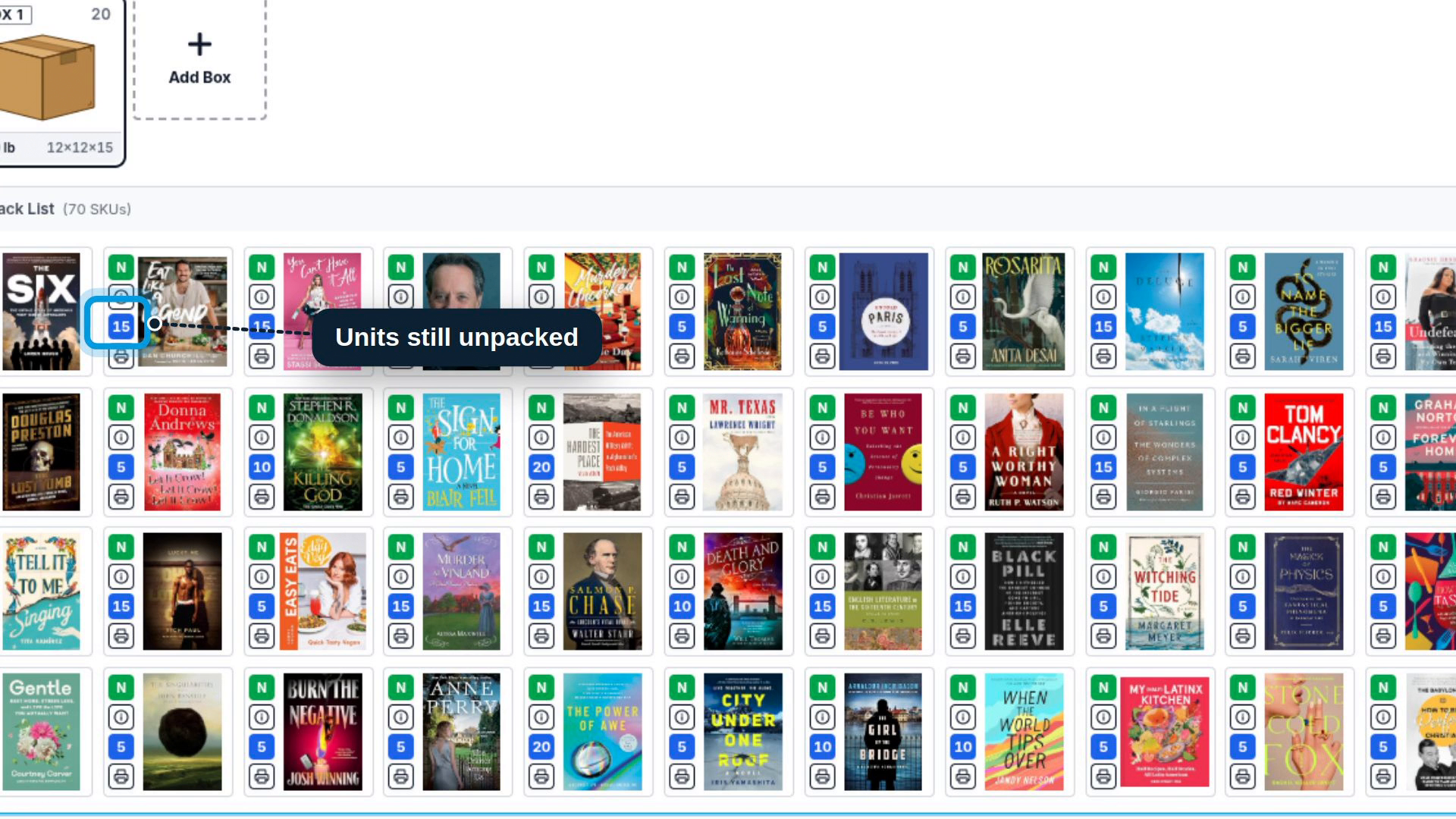
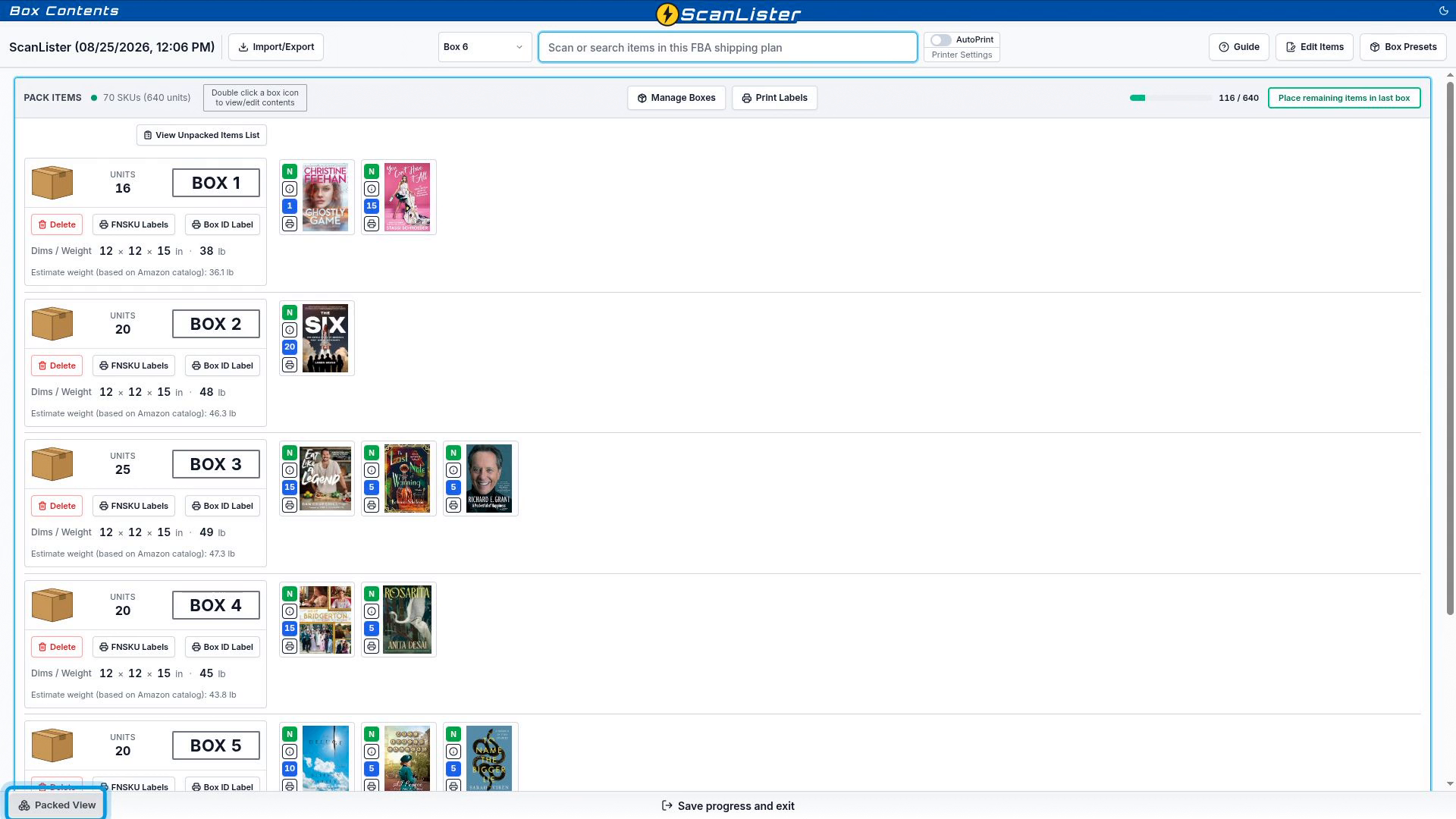
The switch in the bottom left corner changes the view. Unpacked View shows what still needs packing. Packed View shows every box with its contents laid out beside it, which makes it easy to find an item you have already boxed.
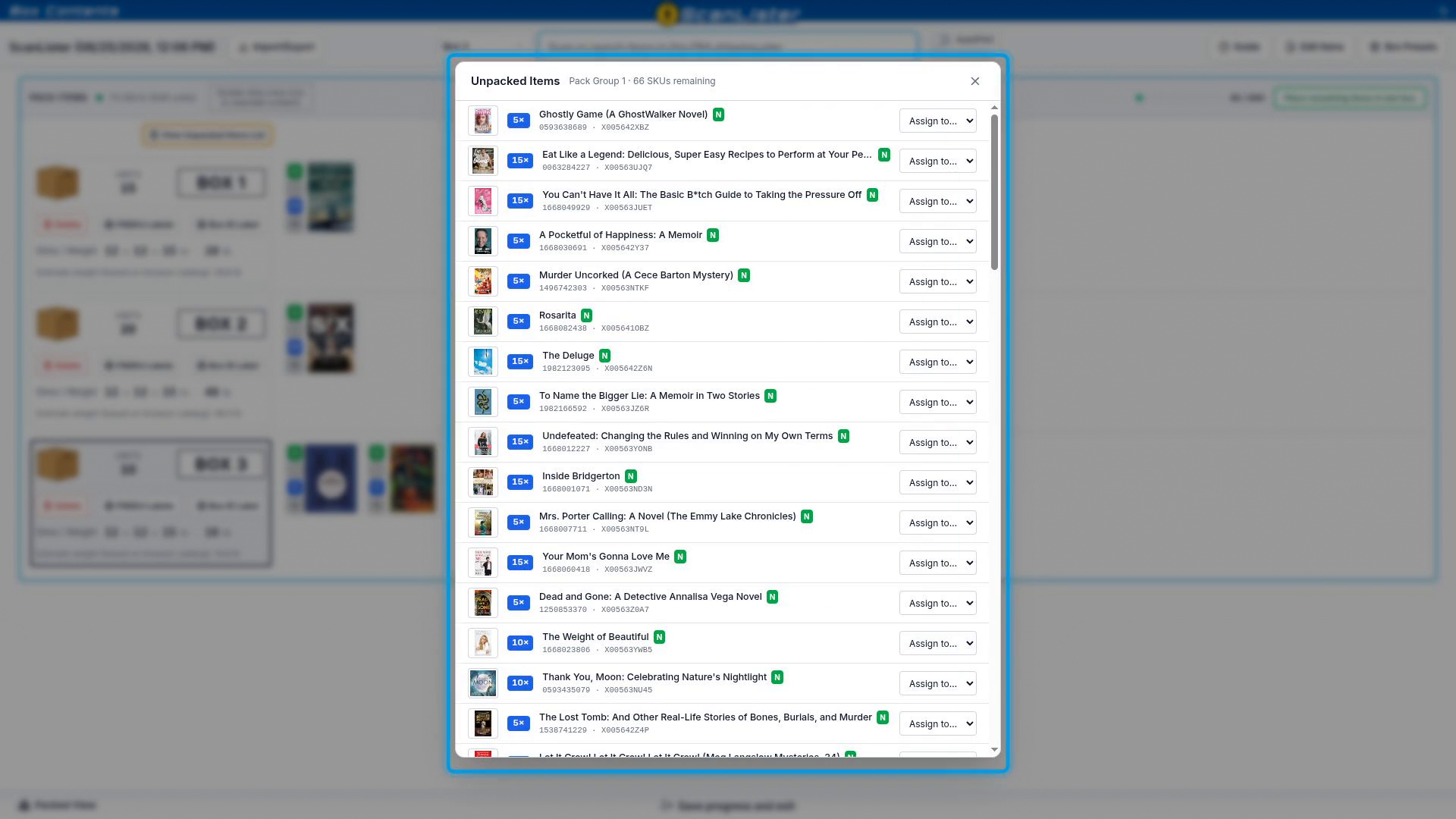
You can also do all your packing from Packed View. Click View Unpacked Items List to see what is left, then use Assign to to put items into any box, or a new one. Place remaining items in last box works here too.
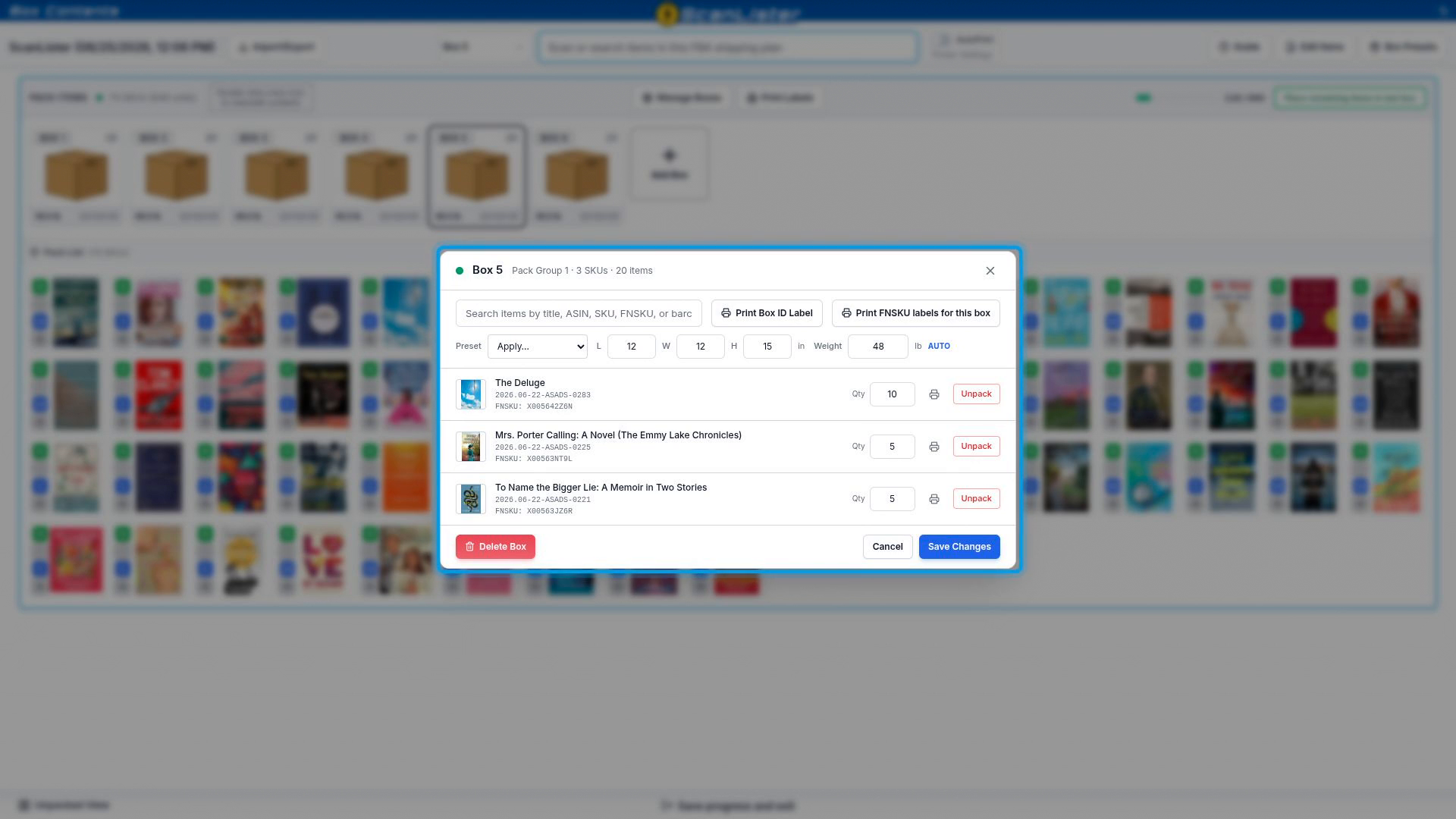
Double-click any box, in either view, to open it. You get the full contents with weight and dimensions, a search box, and controls on each item to change the quantity or Unpack it.
From here you can click Print FNSKU labels for this box, or Print Box ID Label: a small sticker with the pack group and box number. When a shipment runs to dozens of boxes, that sticker beats a marker every time.
To check a box without opening it, hover over it to preview its contents.
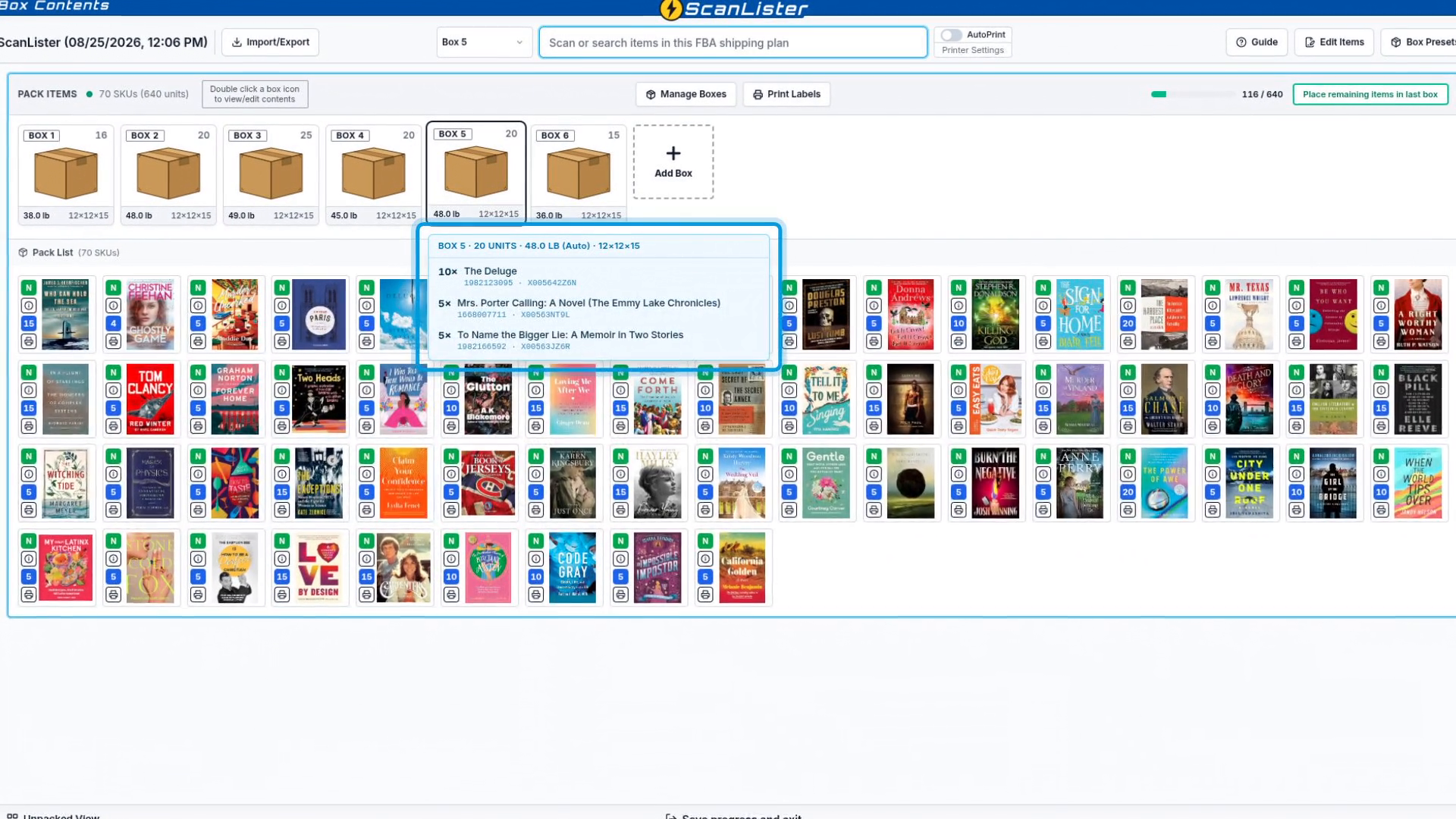
Click Print Labels and choose a format: 30-Up Sheet for any laser or inkjet printer, or Thermal for Zebra, Rollo and Dymo printers.

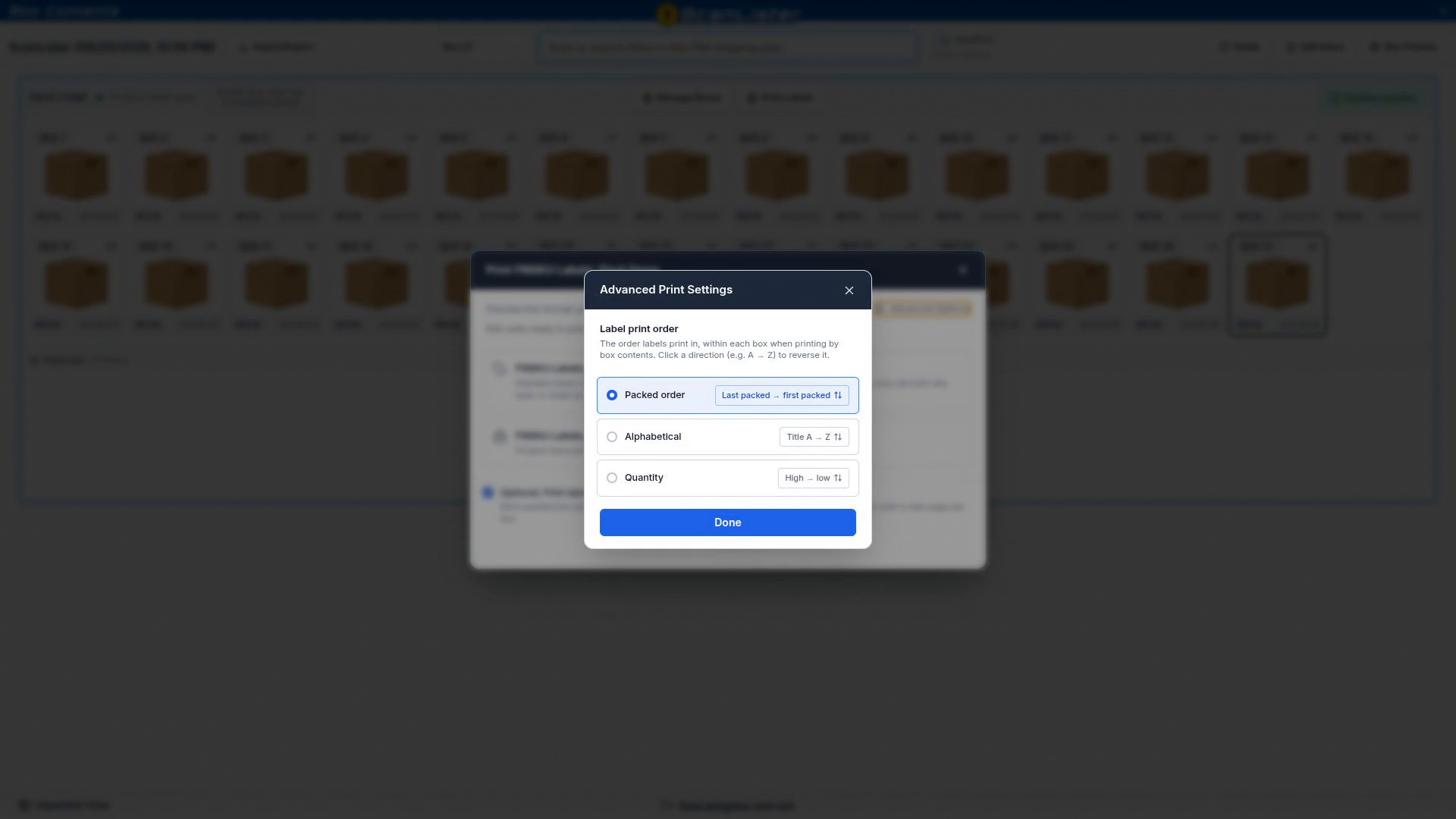
Once everything is packed, tick Print labels based on box contents. Labels print in the exact order you packed, box by box, and each box starts a new page, so the pile lines up with your boxes. While items are still unpacked, labels print in the original listing order instead.

Advanced Options sets the print order within each box: packed order, alphabetical or by quantity. Each one can be reversed.
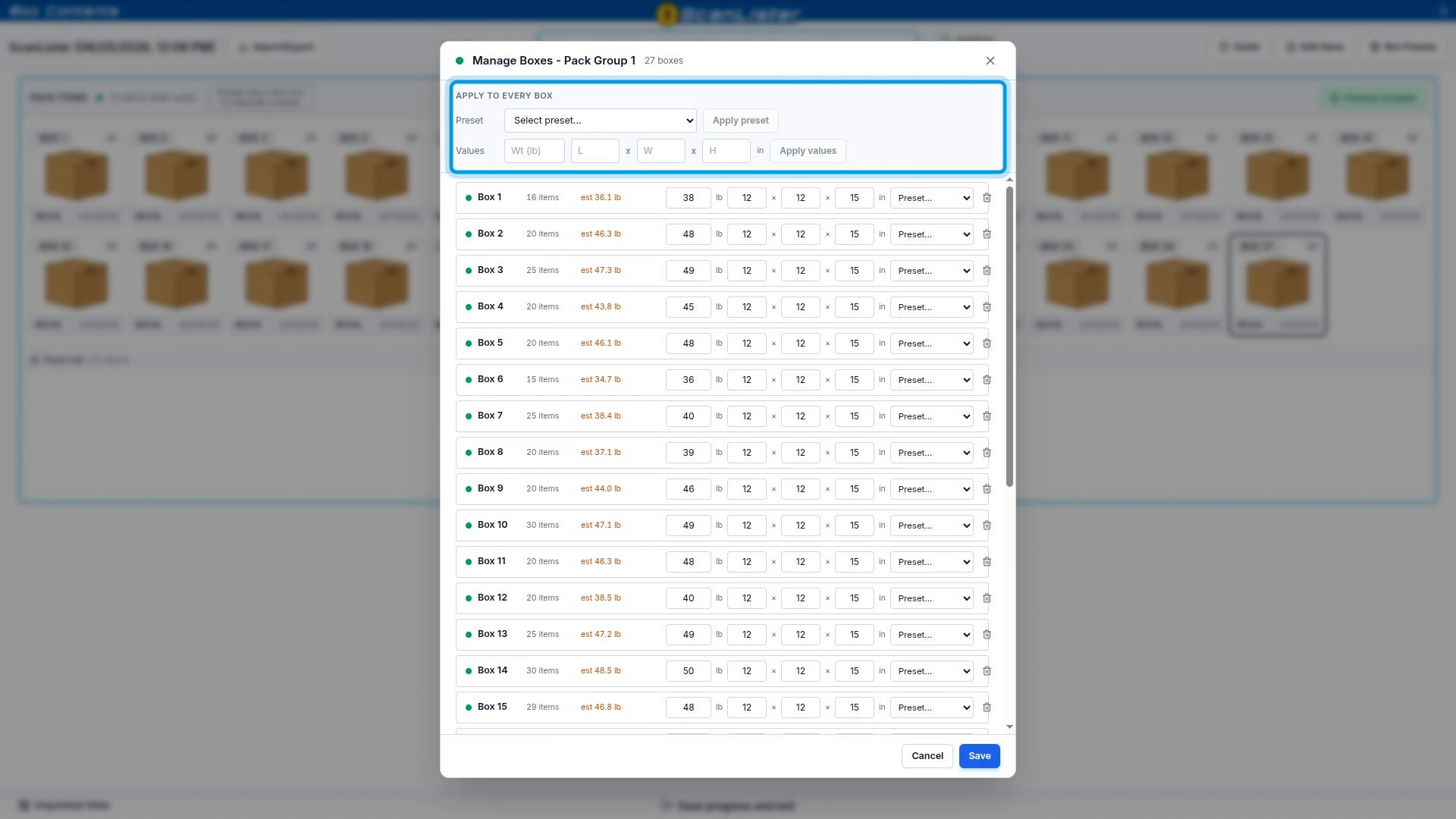
Manage Boxes lists every box with its weight and dimensions, all editable on one screen. Enter values once under Apply to every box to set them for all boxes in one go.
ScanLister also estimates each box's weight from Amazon's catalog data, and warns you when a box goes over 50 pounds. Amazon does not allow boxes over 50 pounds and it can lead to a violation on your account, so take that warning seriously.
Better still, set your boxes up once. Box Presets saves your standard box: give it a name, dimensions and a weight. Applying it from Manage Boxes then takes one click.

To have the weight calculated for you, set the preset's weight to Auto. ScanLister adds up Amazon's product weights for everything in the box, adds your empty box weight, and can round up to be safe. You can leave the dimensions blank if your box sizes vary.
Choose a default box preset for new boxes and every new box starts with it. A new Auto box starts at 1 pound and the weight climbs as you pack. If a box is missing dimensions, type them on the box or fill them in from Manage Boxes.

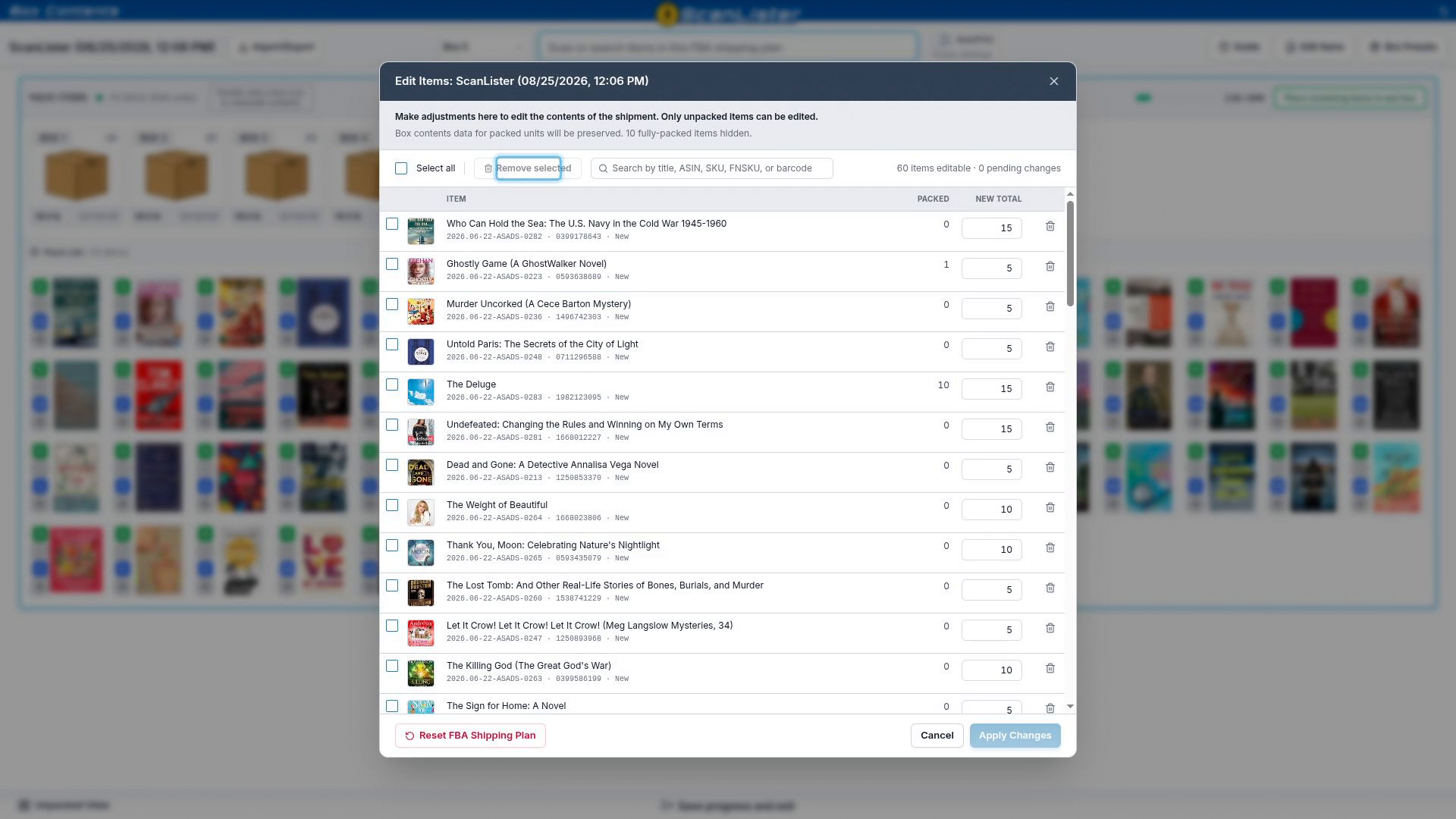
Edit Items lets you remove items or change quantities for anything not yet packed. Say a damaged item slipped into the plan: tick it, click Remove selected, then Apply Changes.
Applying changes refreshes the plan with Amazon. It takes a few minutes, and all your box contents work is kept, which is much faster than starting the shipment over.
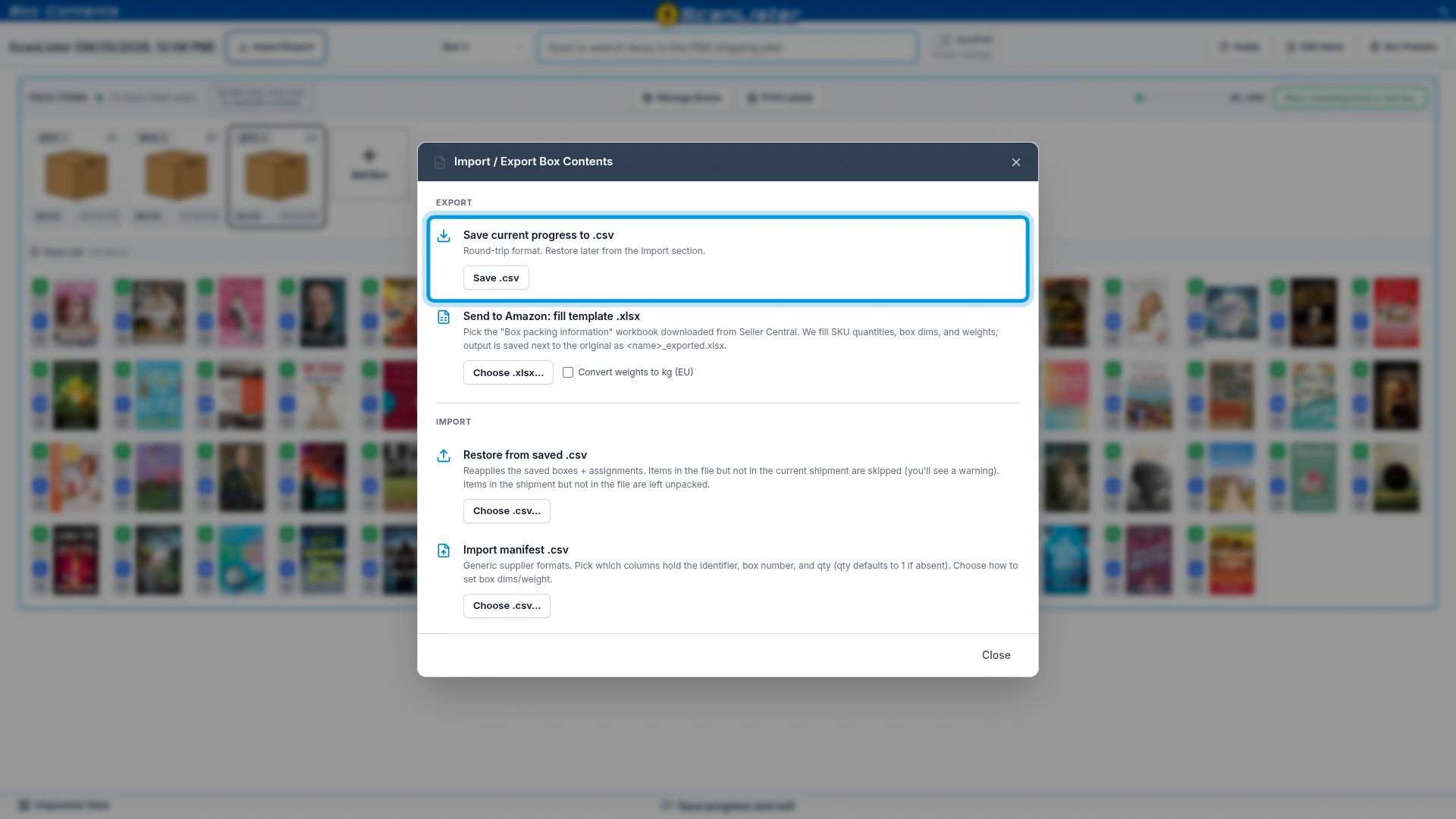
Import/Export handles files. Most people never need it, but it is there when you do.
When the last item is packed, the Confirm Packing button appears. Click it to move on to the Shipping screen.
You can click Save progress and exit at any point. Nothing is lost: come back tomorrow and your boxes are exactly as you left them.

For the shipping and label steps that come next, see Listing and Shipping Items from Start to Finish.
