
Detailed Mode stops on every item you scan and opens a screen full of pricing information: live Amazon offers, price and sales rank history, and a profit calculator. Everything you need to set a confident price is in one place, and you can grade the item and build its condition note before it goes into your list.
Start on the List screen. Under Listing Mode, click Detailed. With Bulk, items go straight into your list using your defaults. With Detailed, ScanLister stops on each item so you can price it.

Base Price sets the starting price that carries into the detailed screen. If you plan to price each item by hand, set it to Fixed Price.
Then choose your starting Condition. You can change it on the detailed screen, but whatever you set here carries over to every item until you change it.

Now scan your first item. The detailed listing screen opens.
The basics are simple: type your price in Your Price and click List. Everything else on the screen is there to help you choose that price.

The middle of the screen shows the item's live Amazon product page, with the offers panel open on the right. You never have to wonder whether the used Buy Box information is accurate, because it comes straight from Amazon.
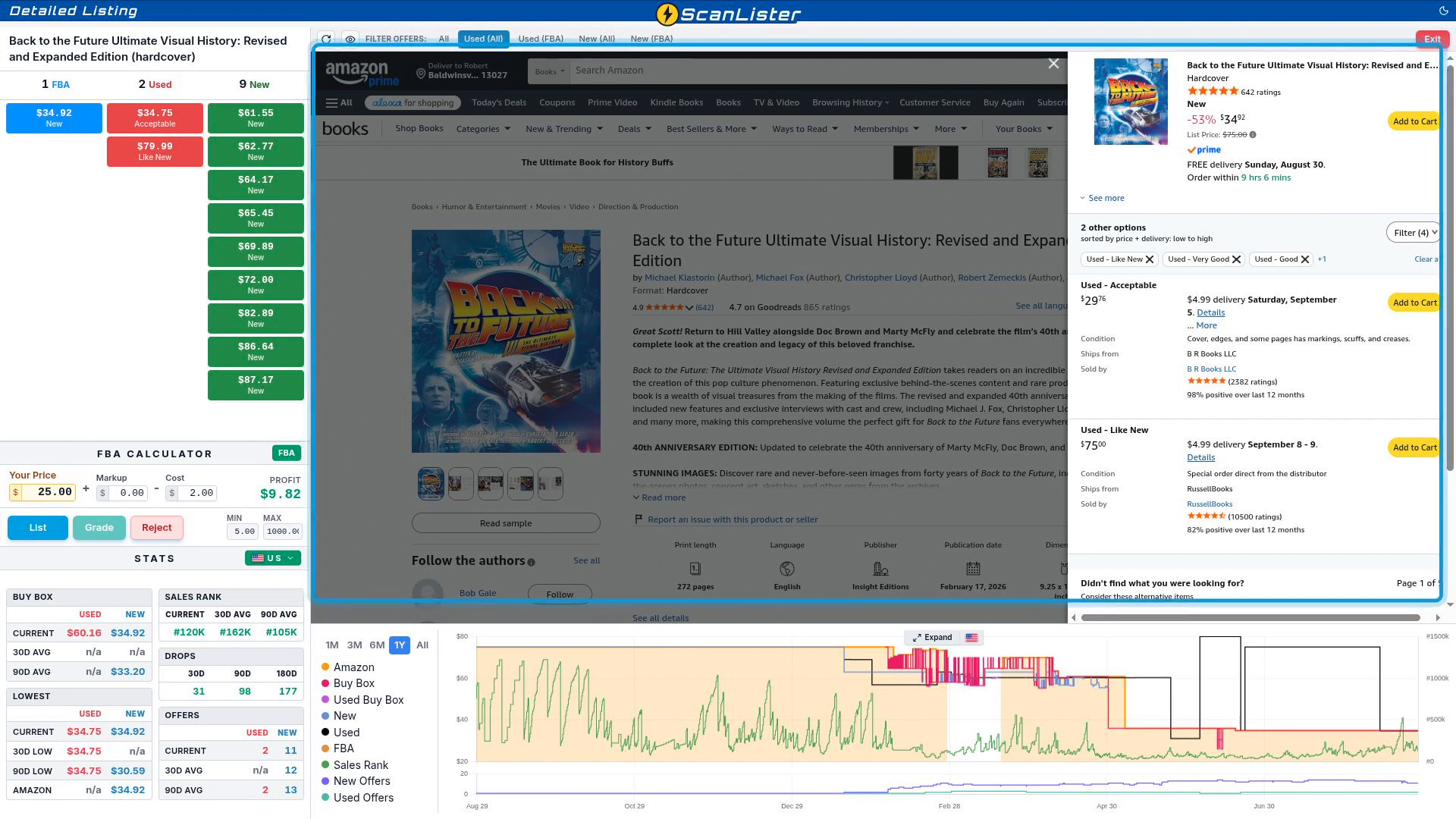
Use Filter Offers along the top to choose which offers the page shows: All, Used (All), Used (FBA), New (All) or New (FBA).
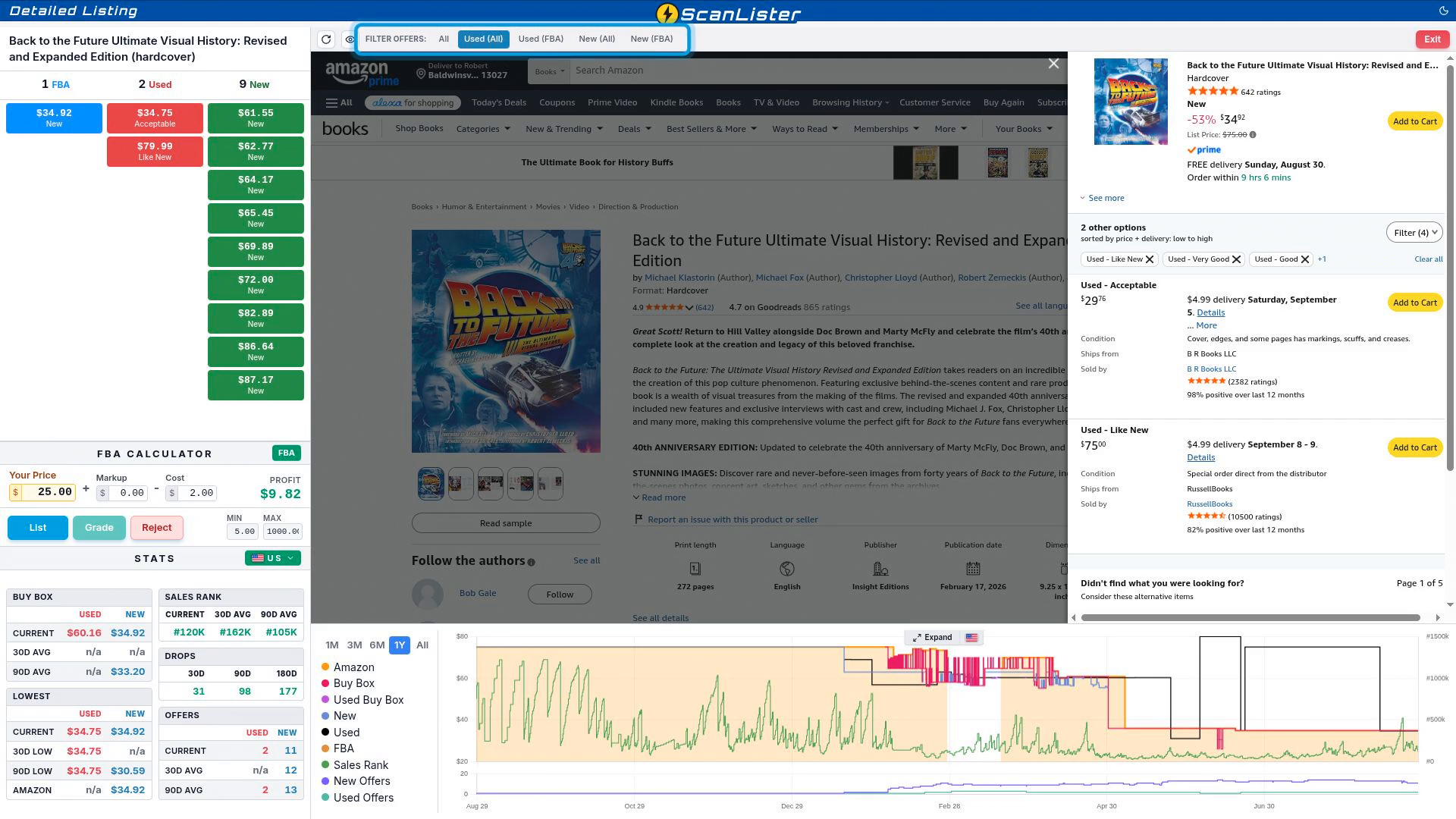
The column on the left lists the current offers from Amazon's own catalog data, grouped into FBA, Used and New. Click any offer and its price goes straight into Your Price.
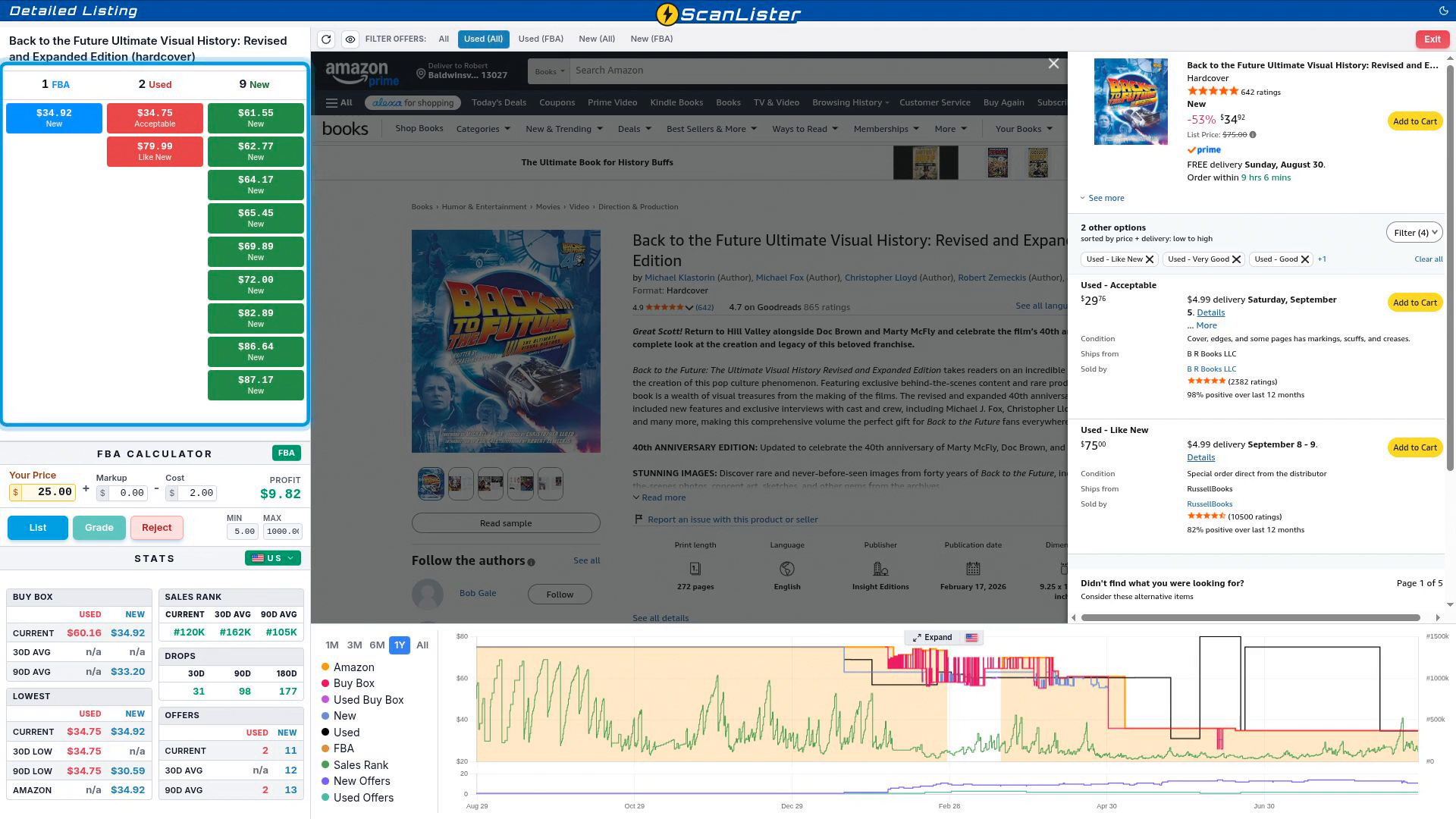
Below the calculator, Stats shows the history behind the price. Click any price in this panel to put it into Your Price.
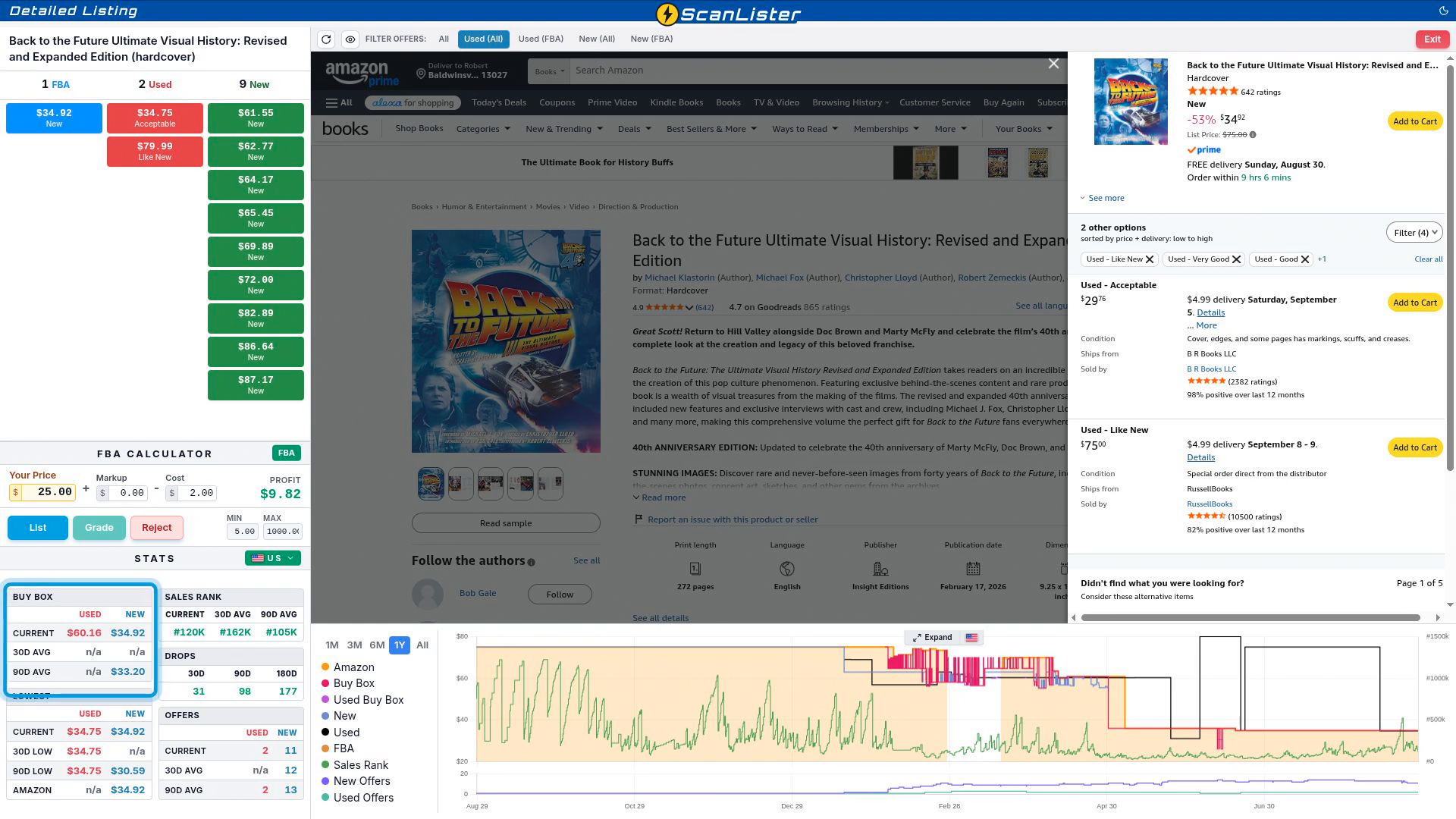
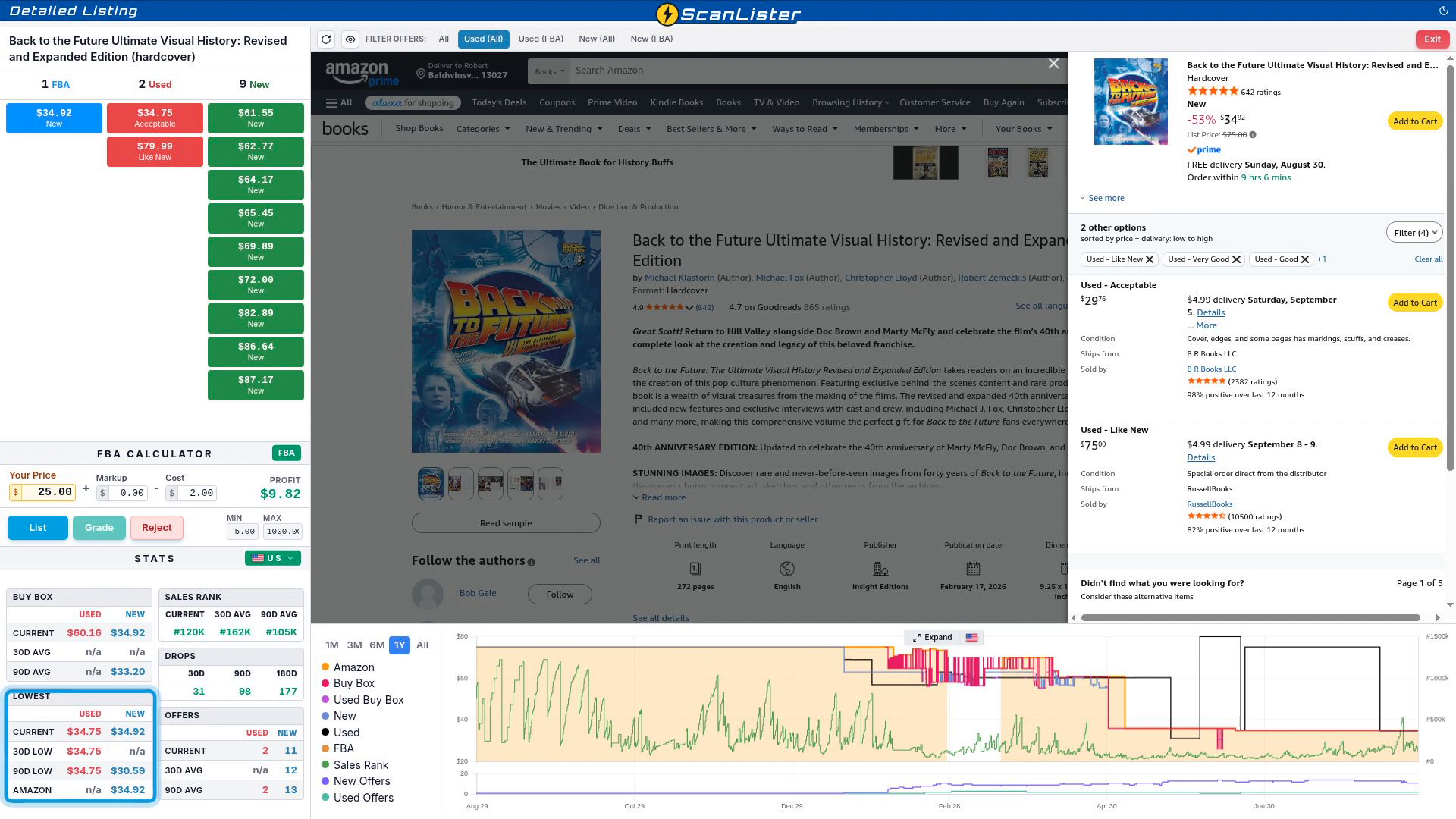


The chart beside the stats is interactive. Tick or untick any line in the list on its left: Amazon, Buy Box, New, Used, FBA, Sales Rank, New Offers and Used Offers. Choose a time range with 1M, 3M, 6M, 1Y or All.
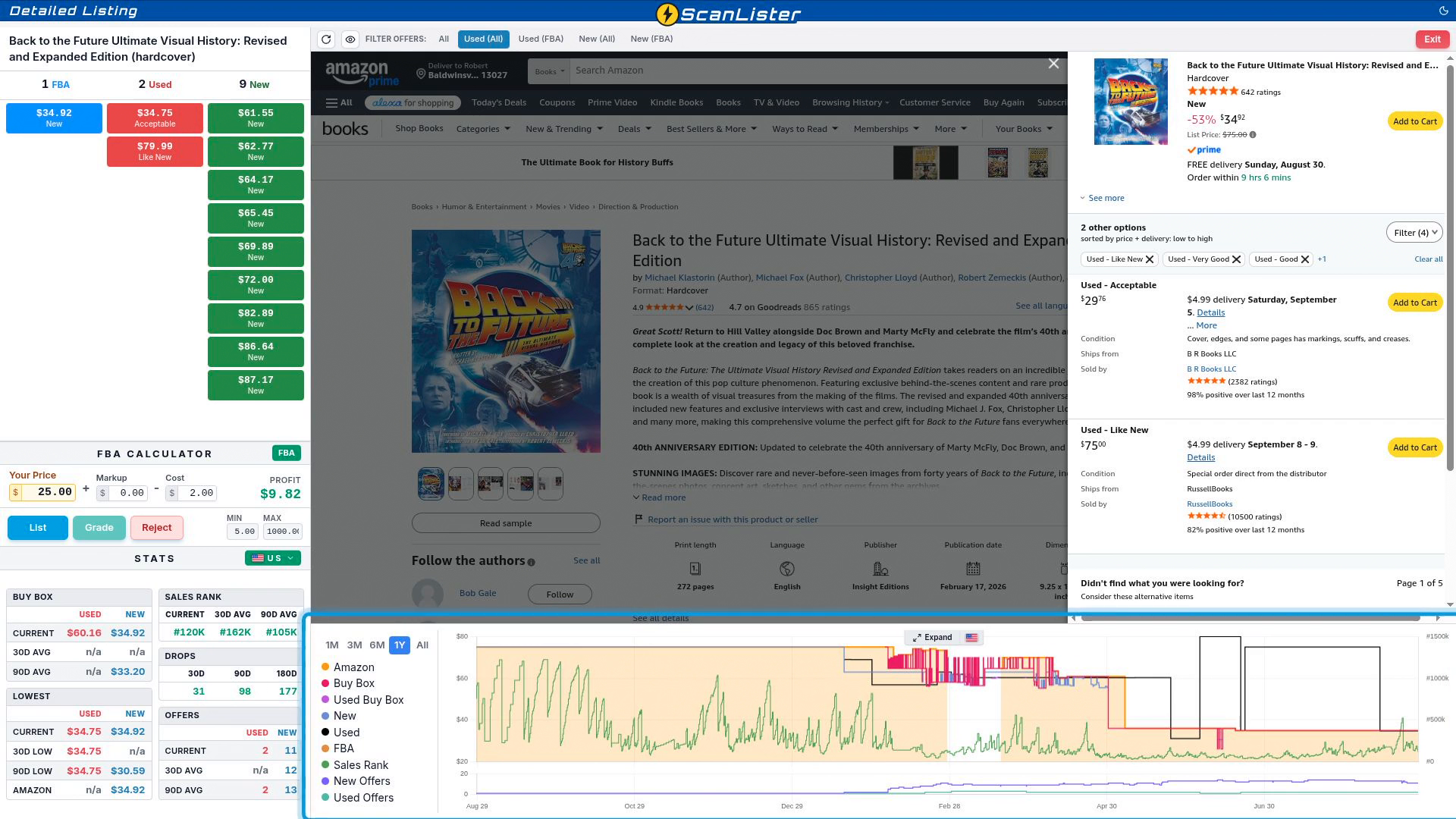
Click Expand for a much larger view. The top chart shows every price line, and the bottom chart shows offer counts over time.
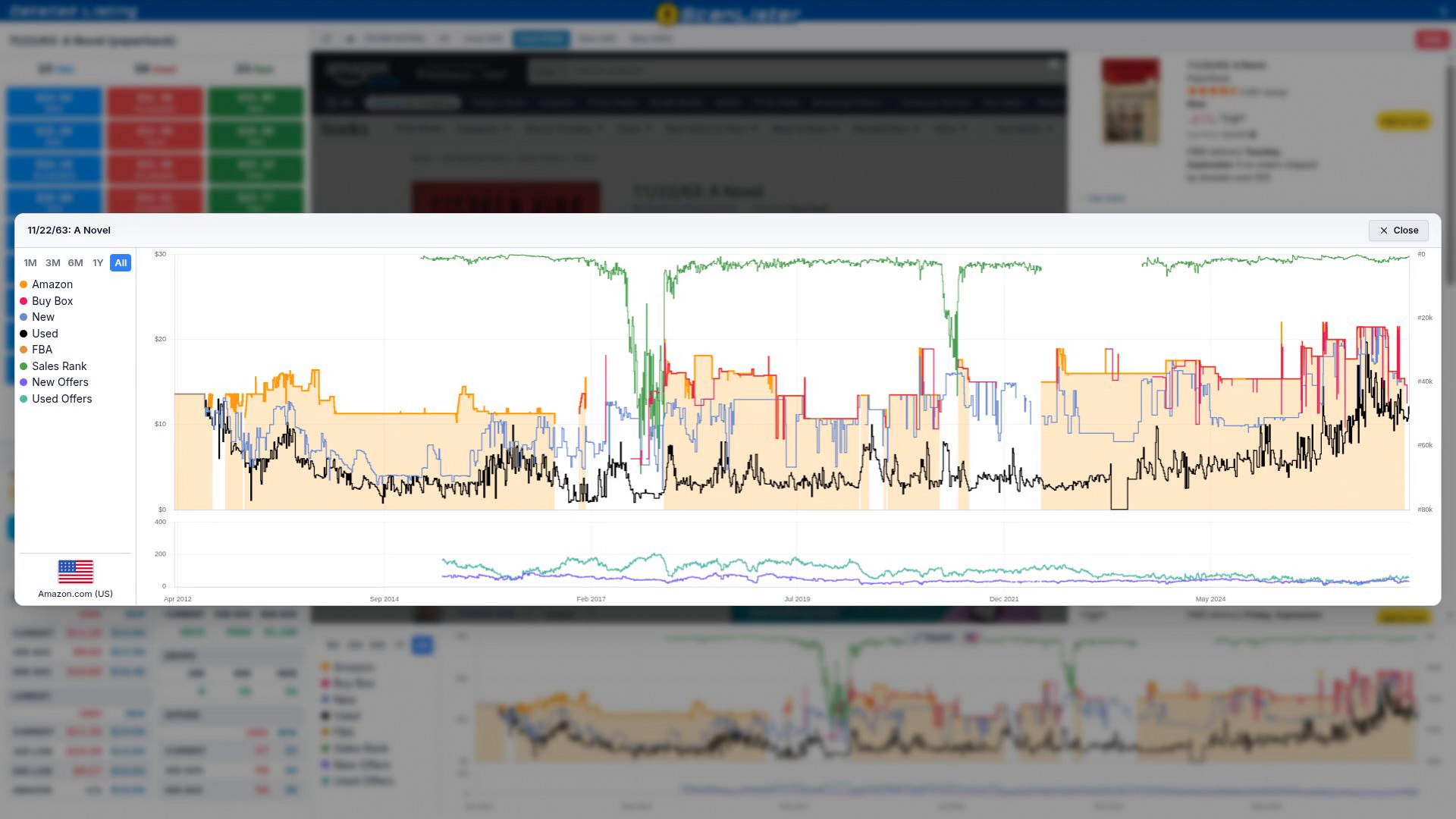
Stats and the chart start on your active marketplace. To compare another one, click the flag beside Stats and pick a marketplace.

Prices in another marketplace can look quite different, because they are in that country's currency and the exchange rate plays a part.
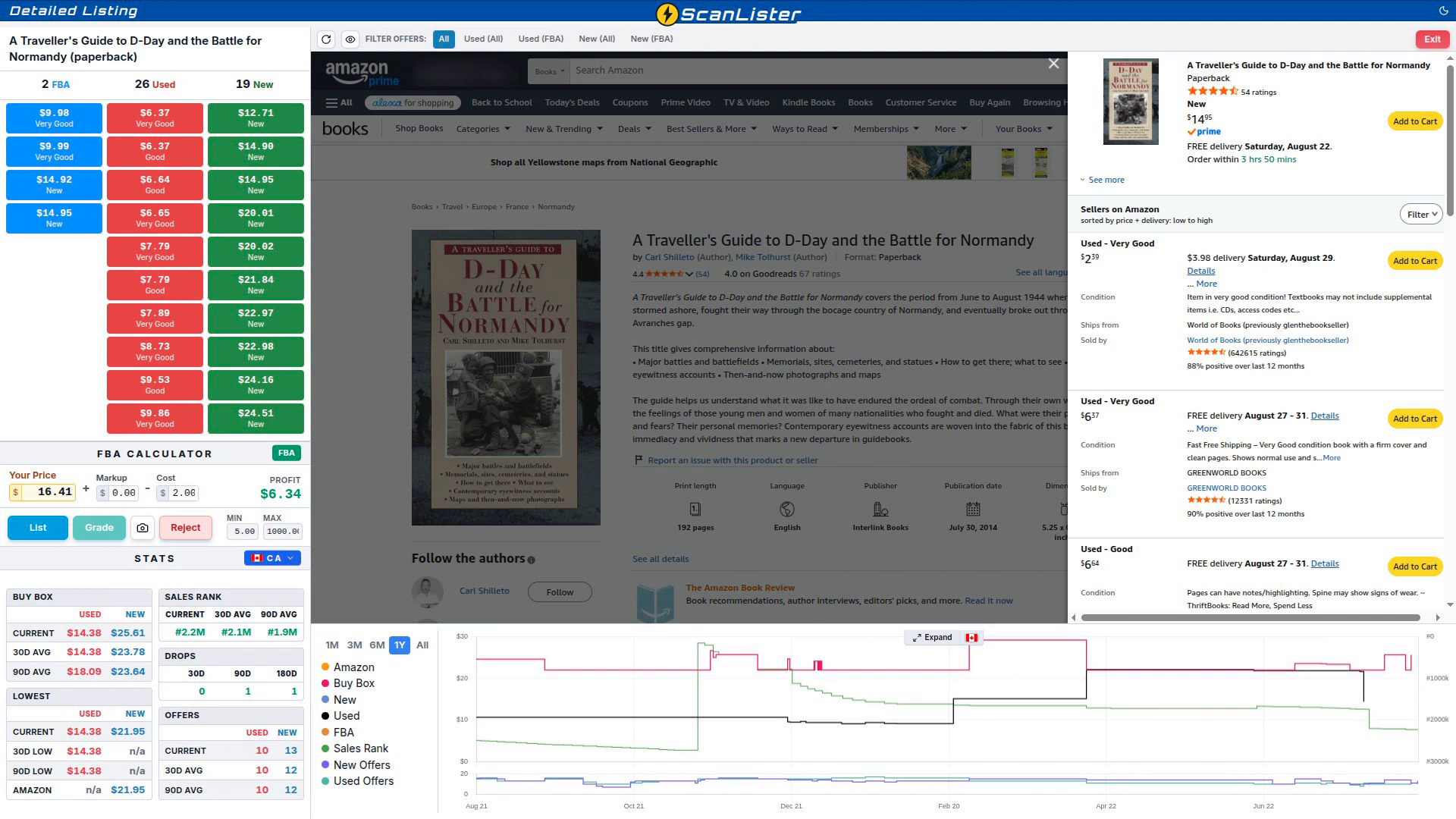
The calculator under the offers works out your profit as you price. Enter your Cost to get an accurate figure. An FBA session shows the FBA Calculator; a merchant fulfilled session uses the merchant fulfilled calculator instead.

Once your price is set, click List. The item is listed with the condition and note you set on the main screen.
To set a condition and note for this item only, click Grade instead. Grade Item opens with the condition buttons at the top and the note builder below.
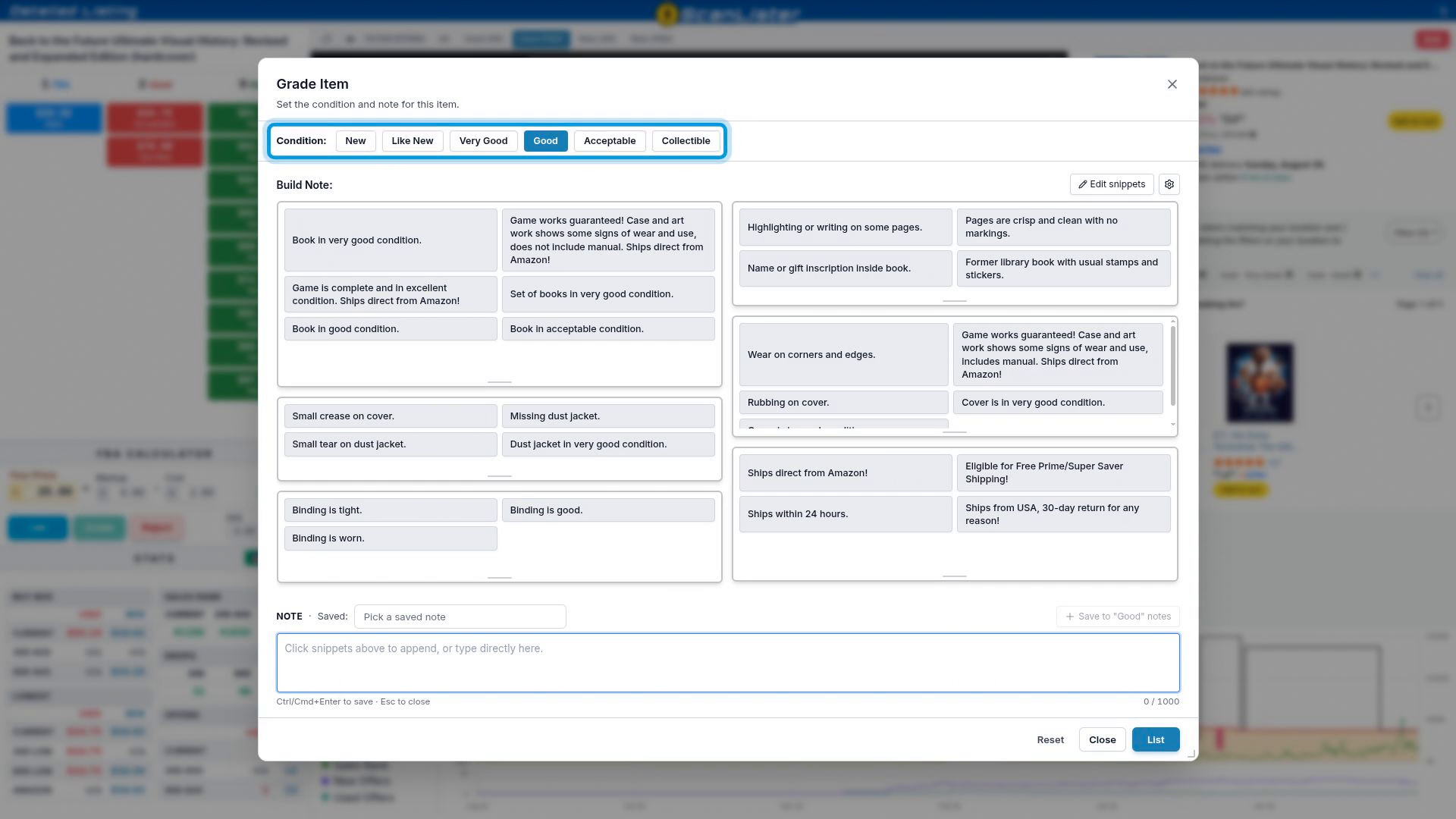
Pick a condition, then click snippets to build your note. Each snippet you click is added to the end of the note, from anywhere in the grid, so a full note takes just a few clicks.
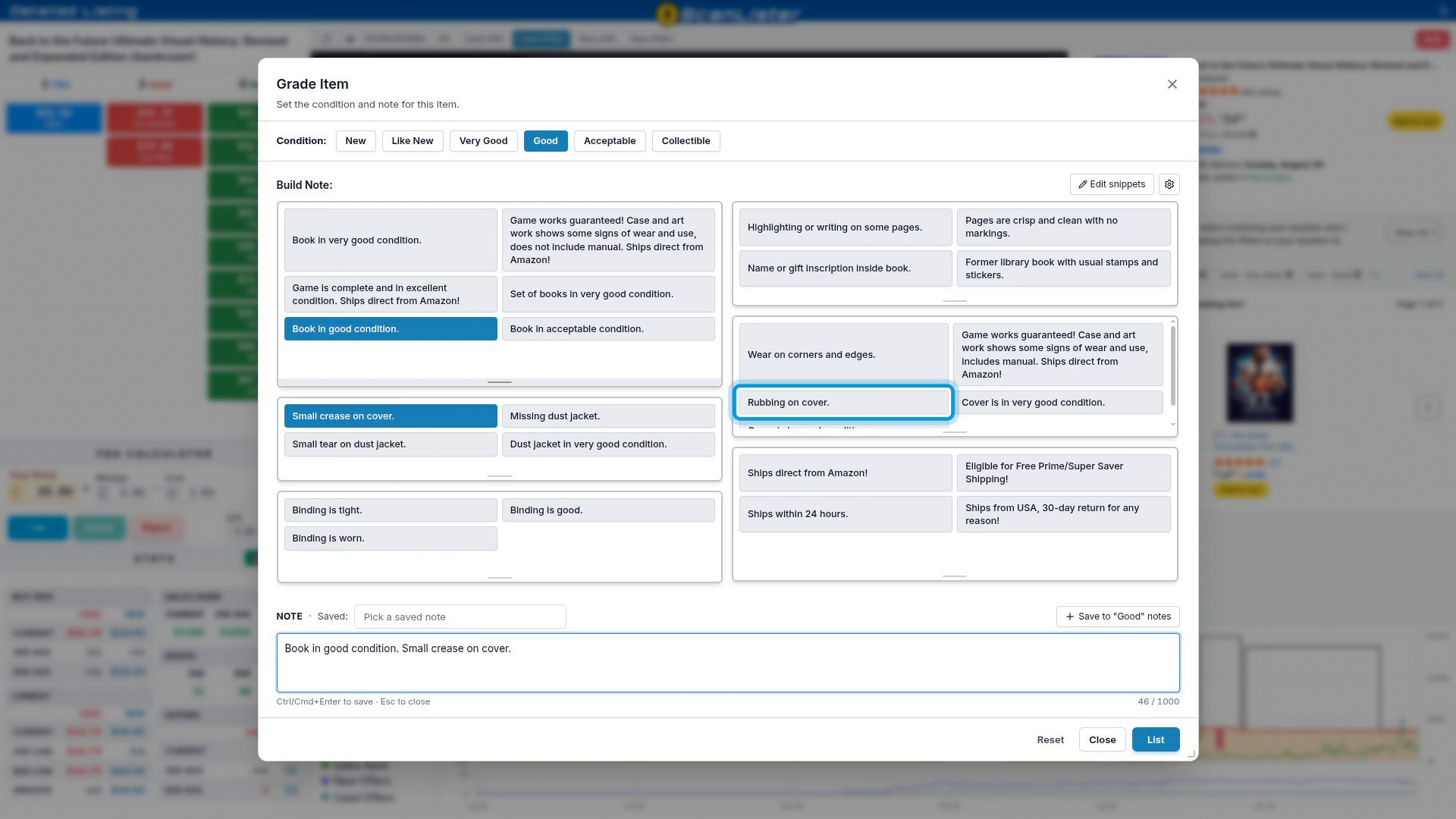
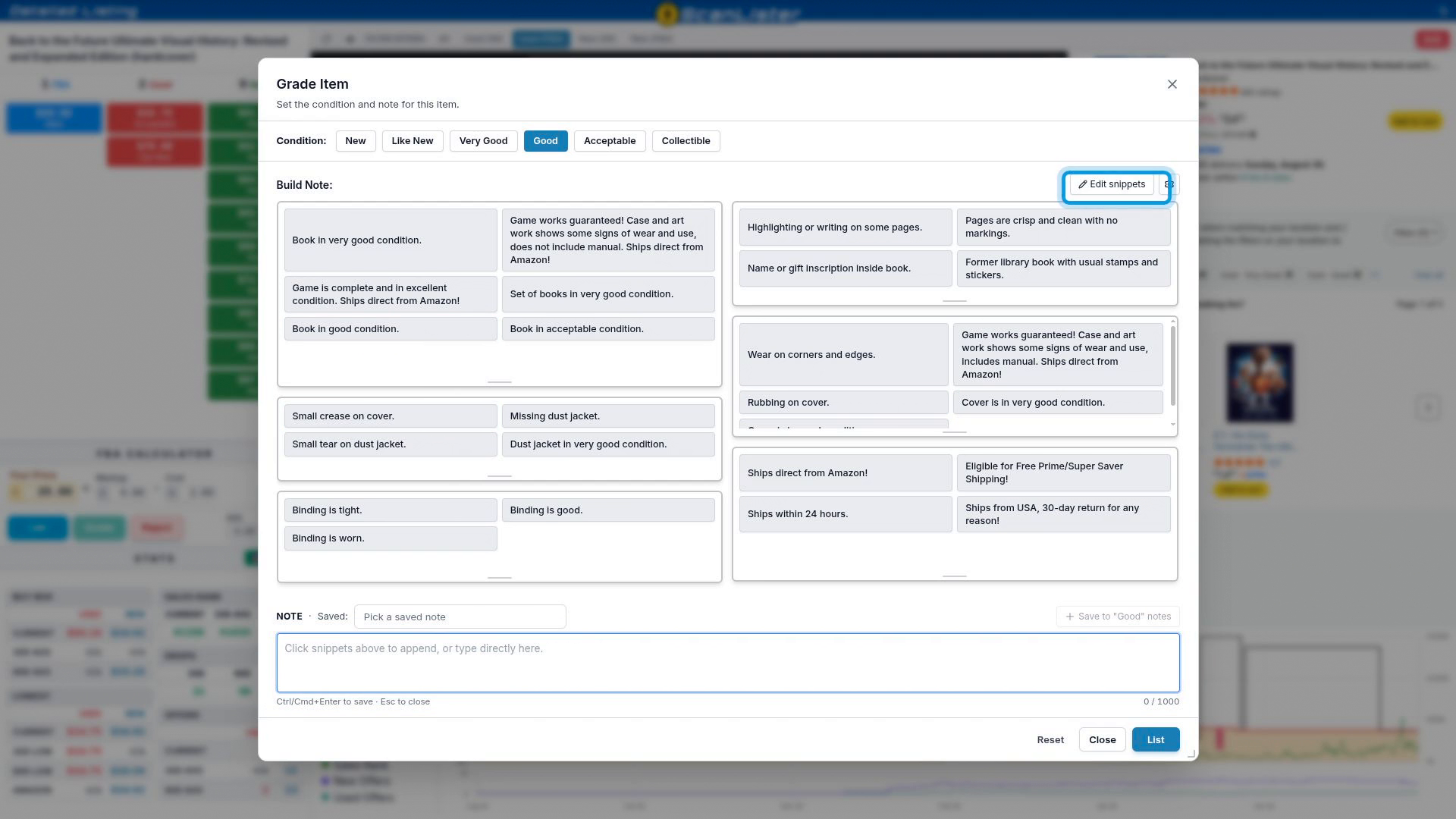
Snippets are fully customizable. Click Edit snippets to change them to whatever you need. You can also expand any section of the window and arrange it to suit how you work.
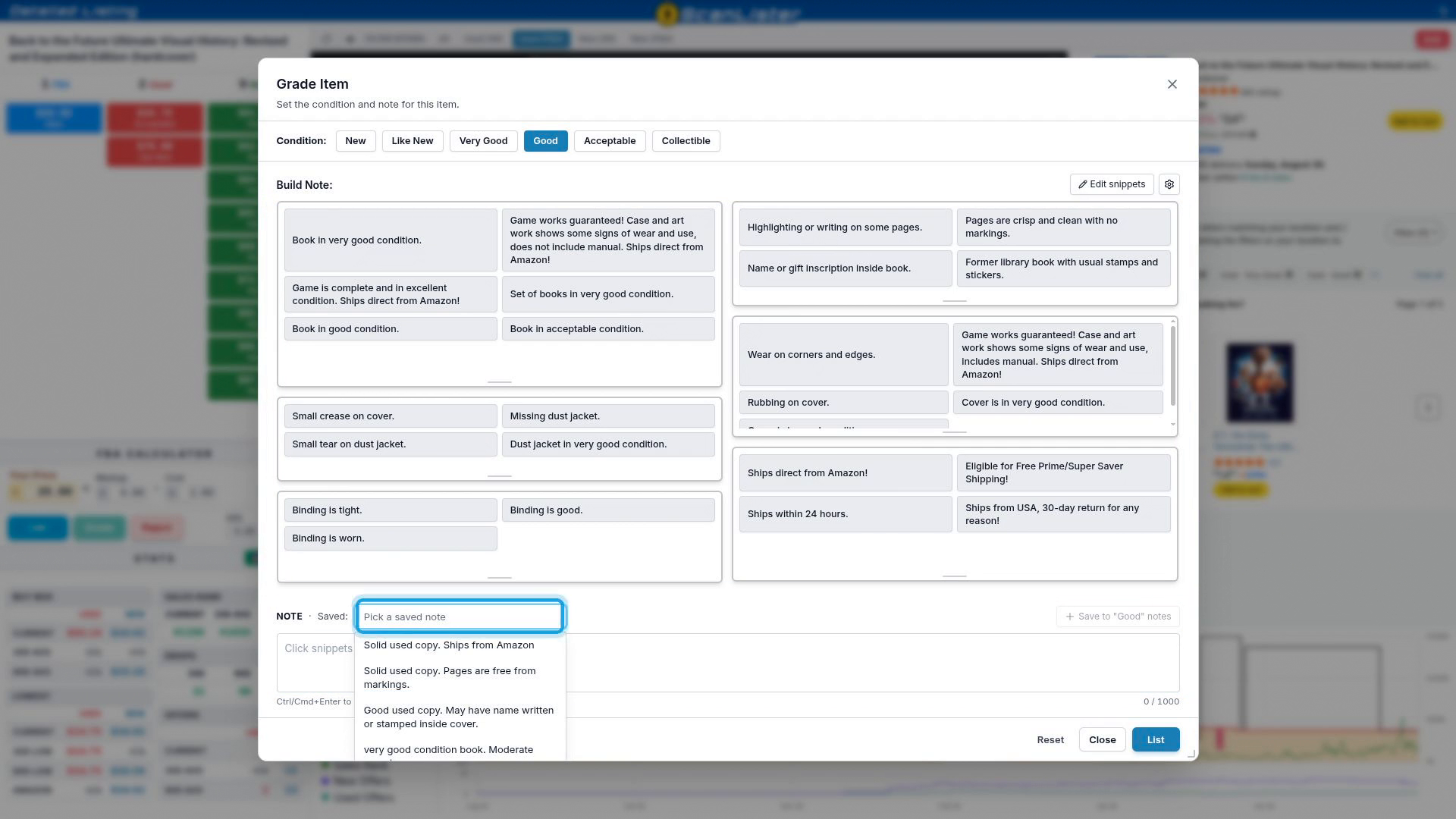
To use a note you have saved before, choose it from Pick a saved note. You can still add snippets to it.
To keep the note you just built for next time, click Save to notes. It is saved under the condition you picked.
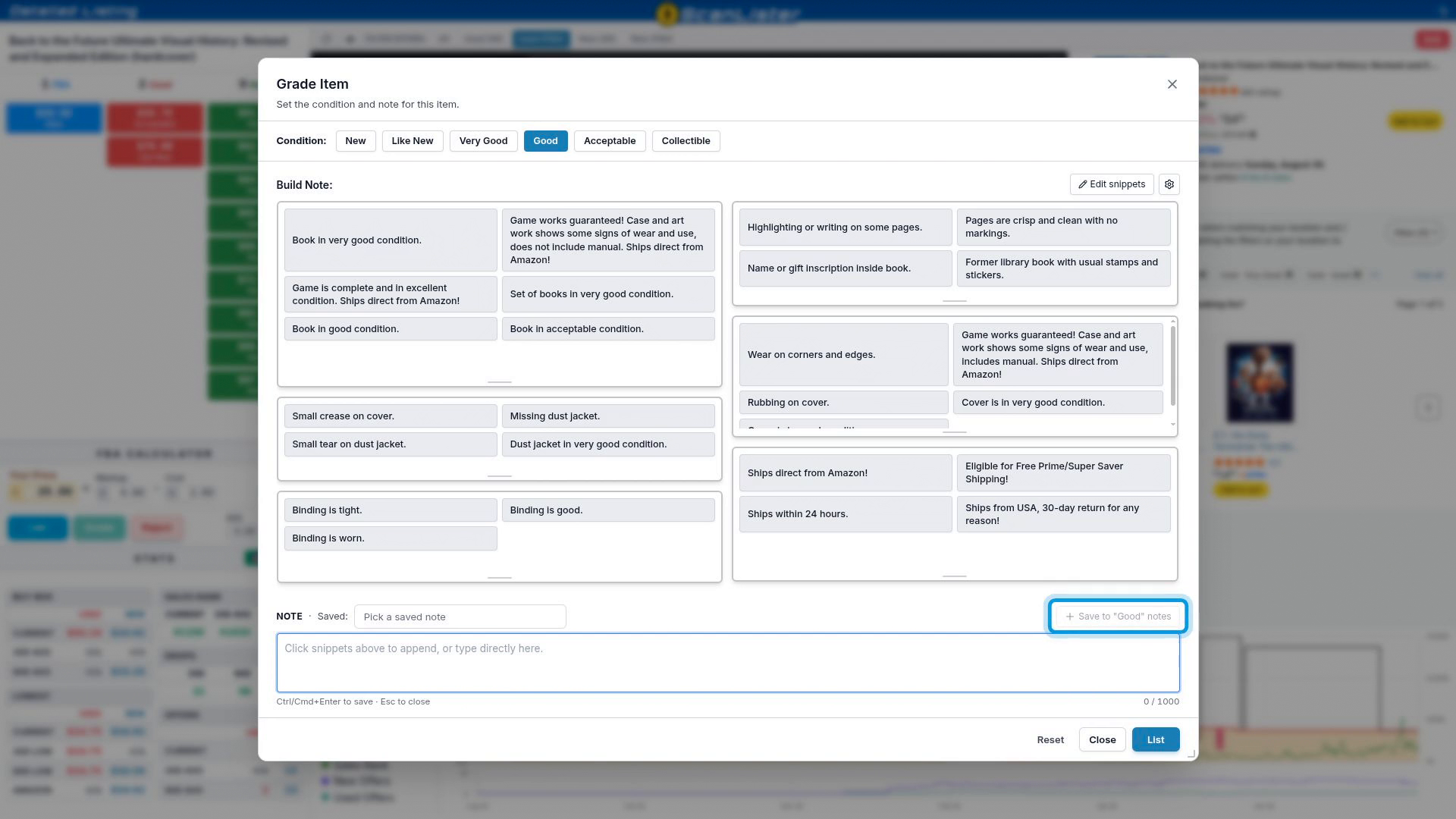
When the condition and note are set, click List. Detailed Mode closes and the item is added to your list on the main screen. To go back and look at the pricing again, click Close. Your condition and note are kept.
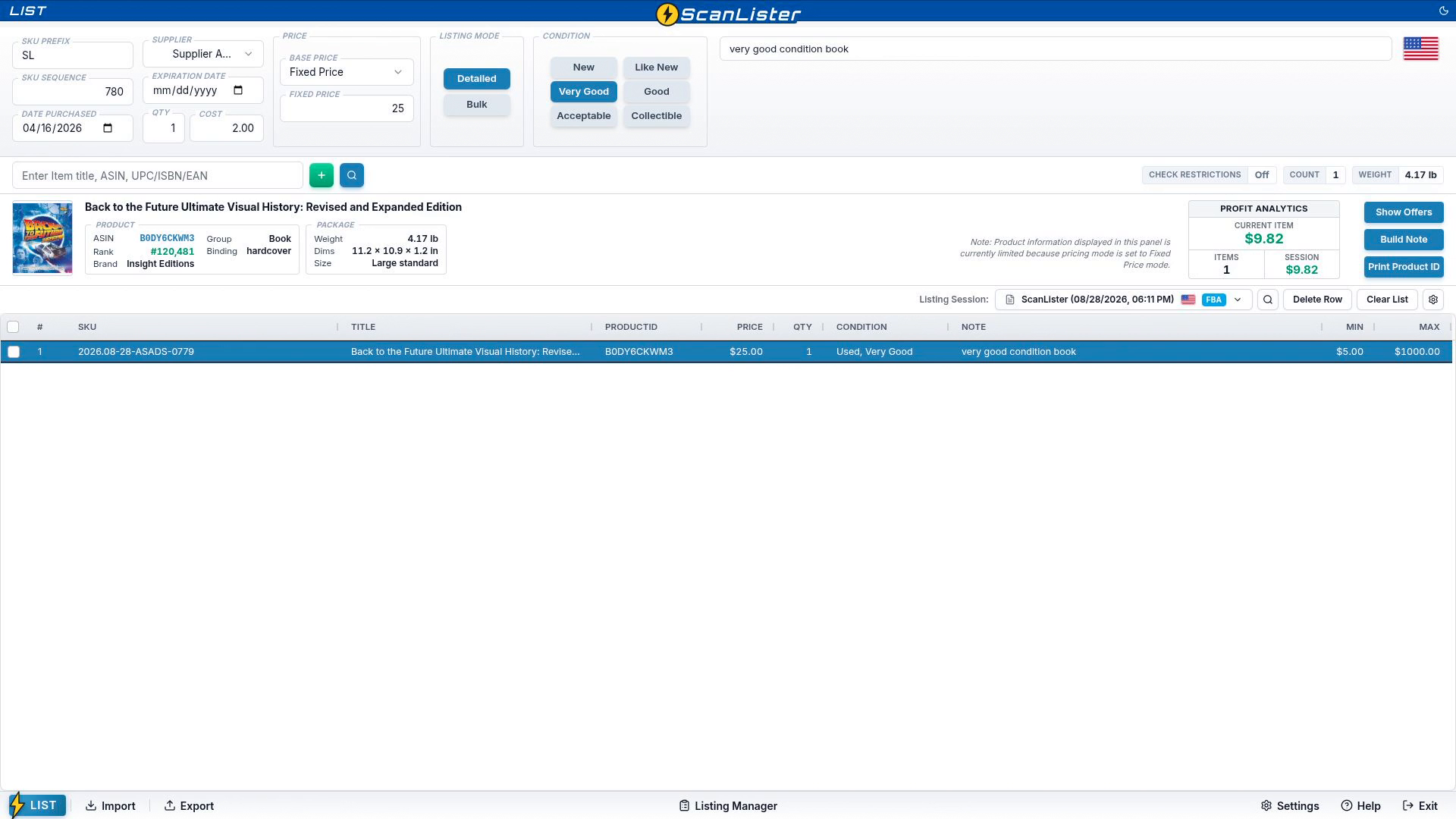
When everything is listed, the rest works just like any other batch: create the shipping plan in Listing Manager, pack your boxes, confirm shipping and print your labels. See Listing and Shipping Items from Start to Finish for each step.
