
ScanLister lists on eBay as well as Amazon. You can list on both at once, list on eBay alone, or add eBay to items you already sell on Amazon, including FBA items. This guide connects your eBay account and gets it ready to list. It takes a few minutes, once.
eBay selling is marked Beta while we finish polishing it. Everything in these guides works today. If something looks wrong, send us a ticket from the Help screen and we will look at it quickly.
Click Dashboard at the bottom of the screen, then Settings, and open Connected Accounts. Under eBay Connections, click Connect eBay. A browser window opens on eBay's sign-in page. Sign in and allow ScanLister access. When you come back to the app, your account is listed and the eBay setup opens on its own.
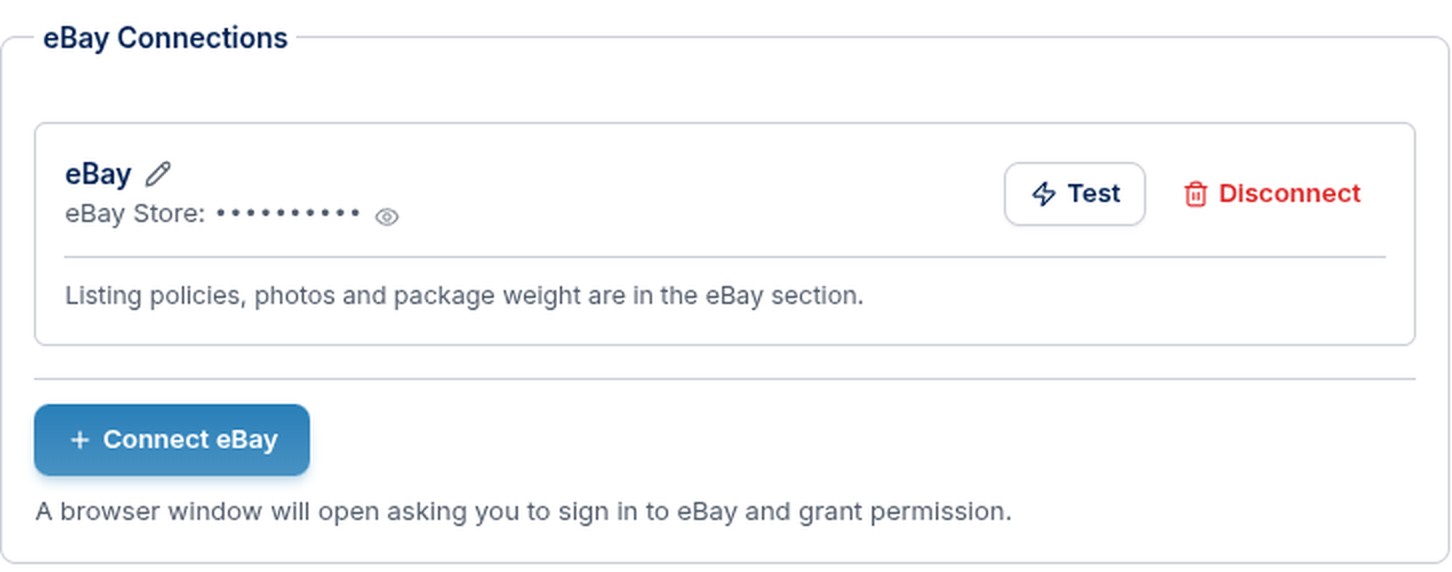
You can connect more than one eBay account. Each one gets its own setup.
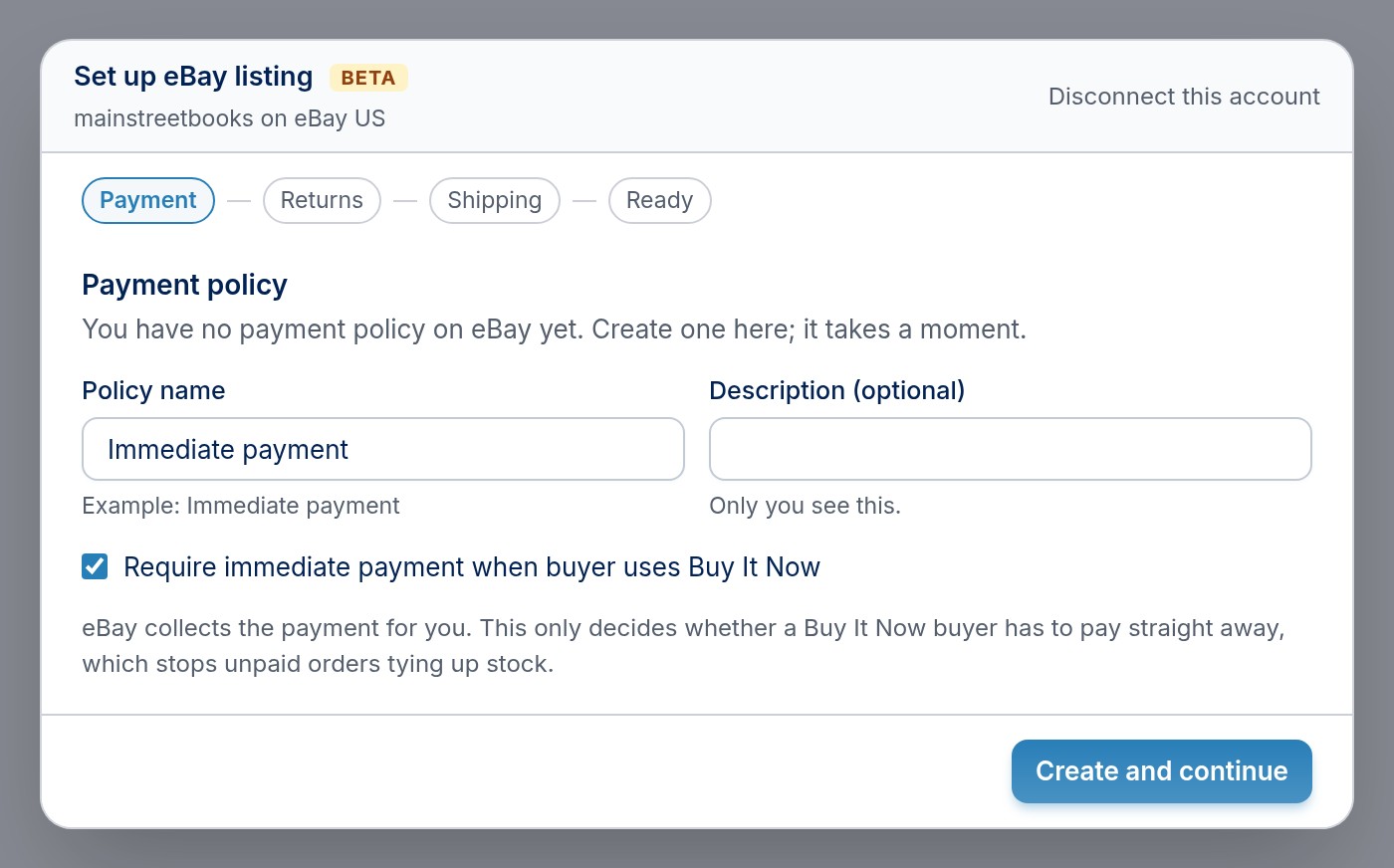
eBay needs three business policies before anything can list: how buyers pay, what your return terms are, and how you ship. The setup walks you through each one. If you already have policies on eBay, pick the one you want. If you do not, create one right there; it takes a moment.
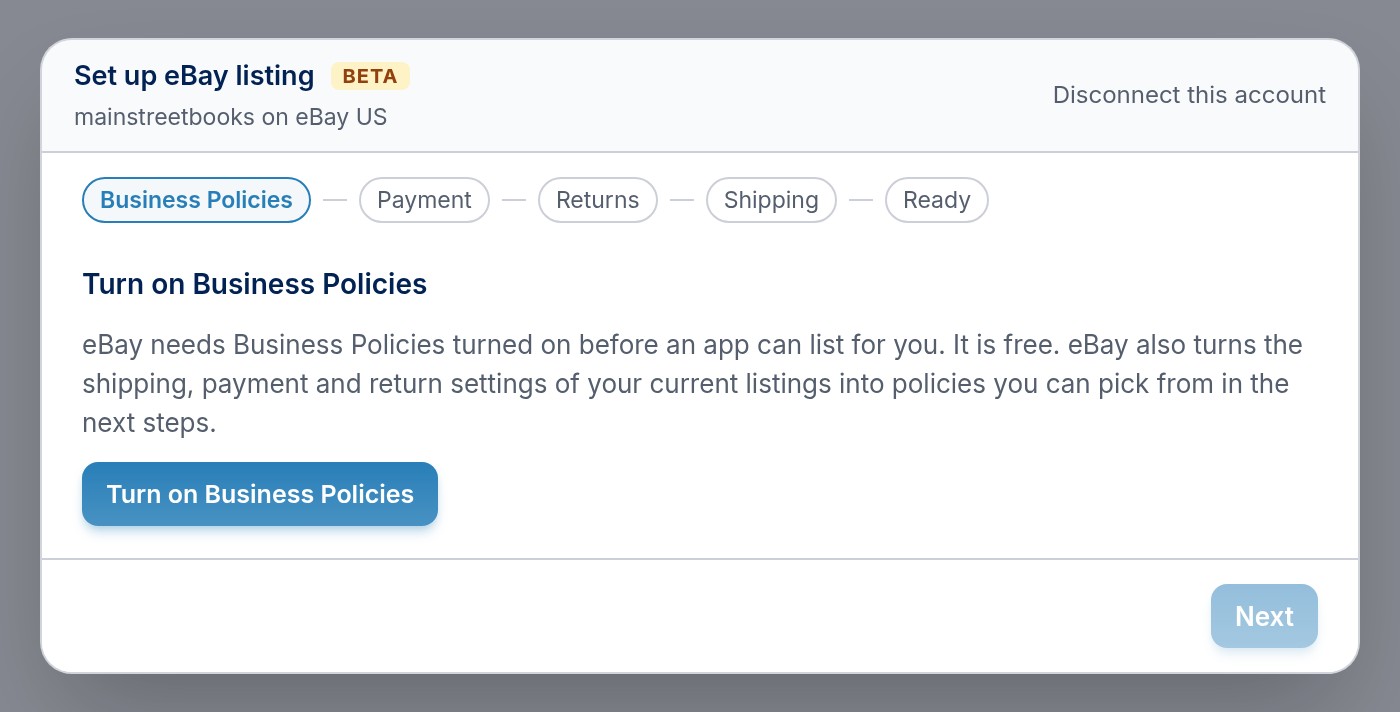
If your eBay account does not use Business Policies yet, the first step asks you to turn them on. It is free and takes one click. eBay turns the shipping, payment and return settings of your current listings into policies you can pick in the next steps.
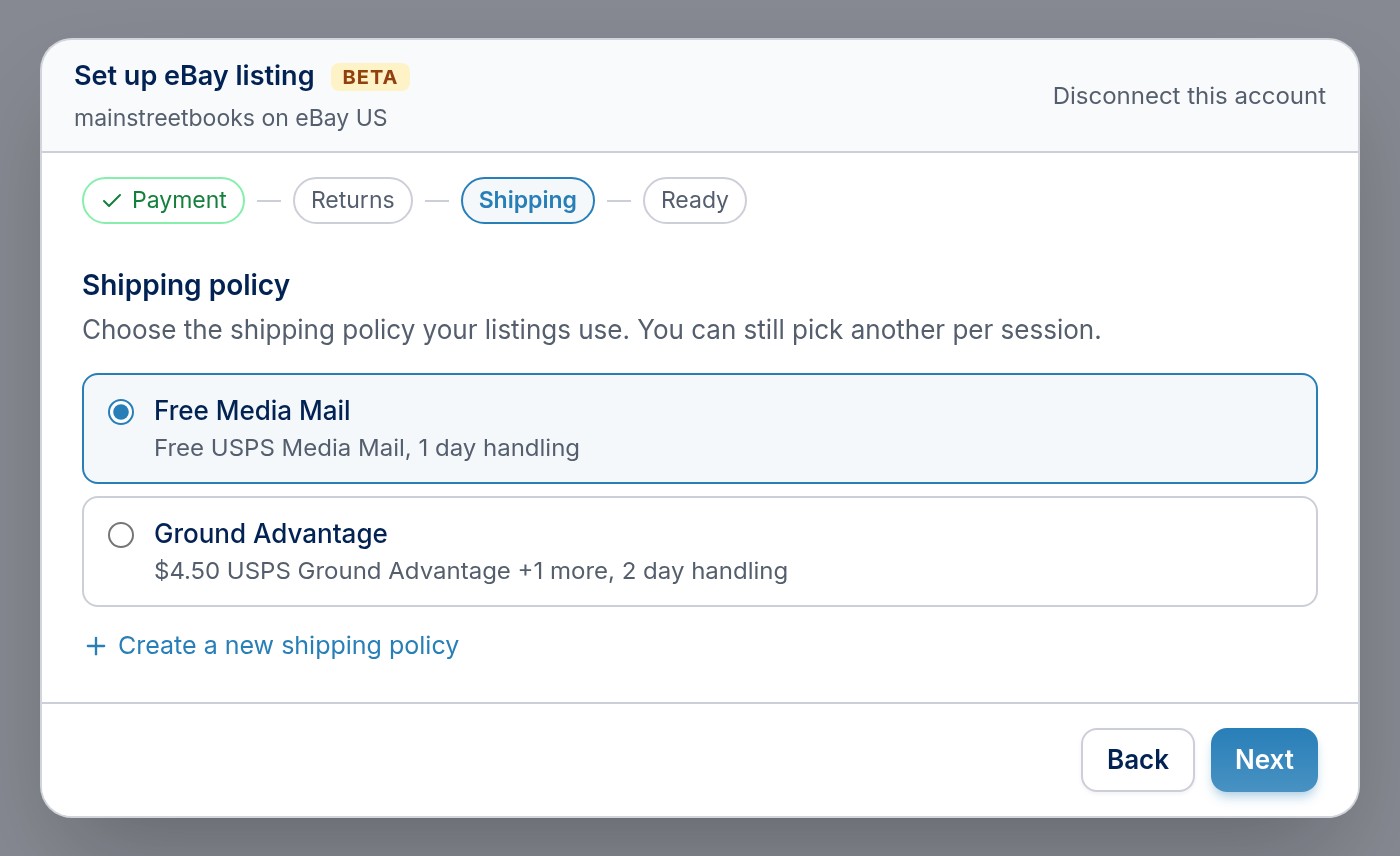
Each step shows your existing policies, with a one line summary of each. Pick one, or create a new one. A policy you create here also becomes your account's default.
The last step lists what you picked and anything still missing. When every line has a check, click Done.
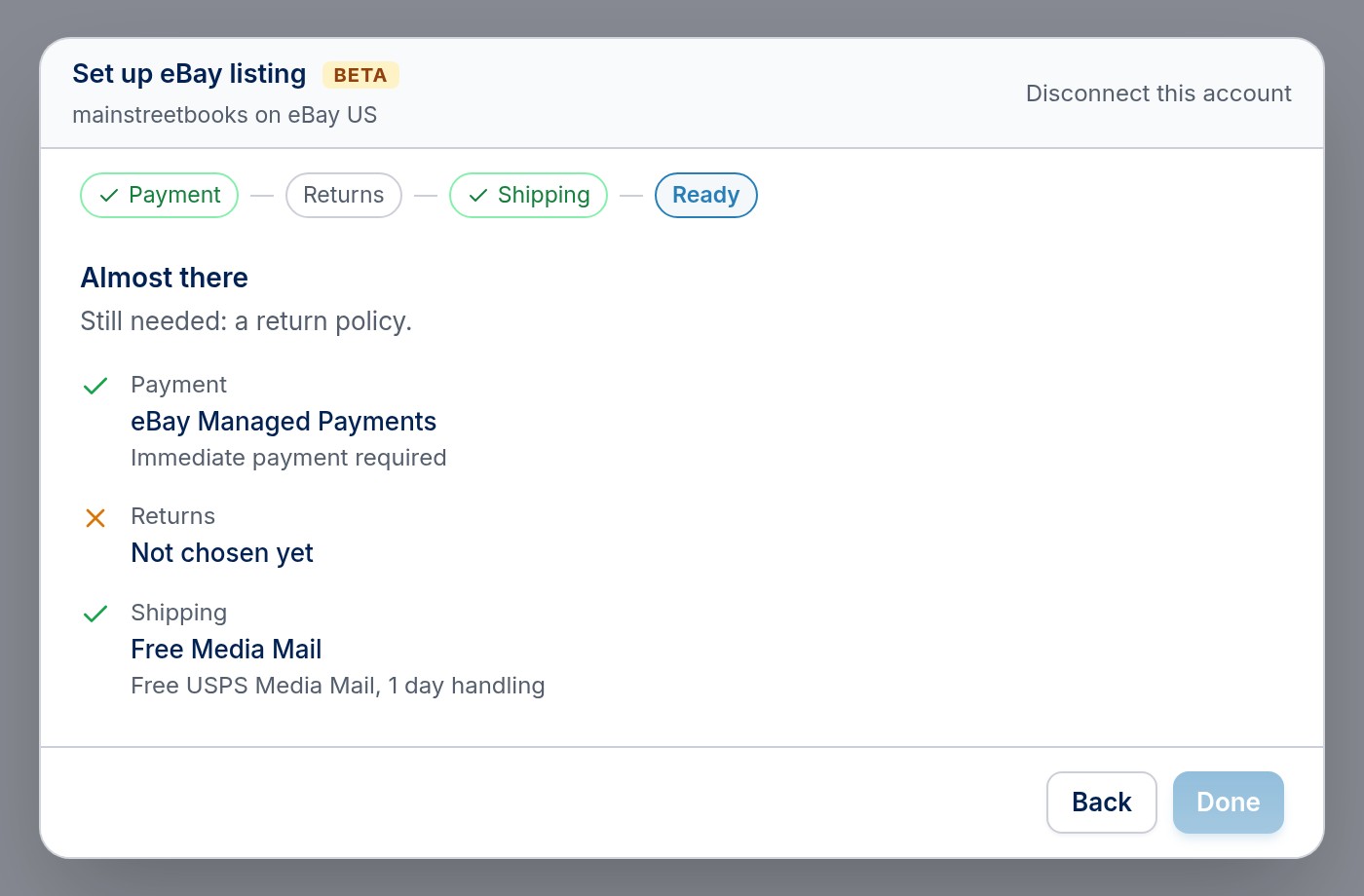
You can reopen the setup any time from Settings > eBay with Set up or add policies. If you start an eBay session before setup is finished, ScanLister offers Finish eBay setup right there.
After you connect, ScanLister reads in the listings already on your eBay store. They appear on the Inventory screen; use the eBay only filter to see them. ScanLister refreshes them daily, and the Sync button refreshes them on demand.
