
Requires macOS Monterey (version 12) or later. To check your version, click the Apple menu and choose About This Mac.
The download starts right away. The Windows and Mac installers are also on the welcome page.
Double-click ScanLister.dmg in your browser’s downloads or your Downloads folder.
A window opens showing the ScanLister icon, an arrow, and your Applications folder.
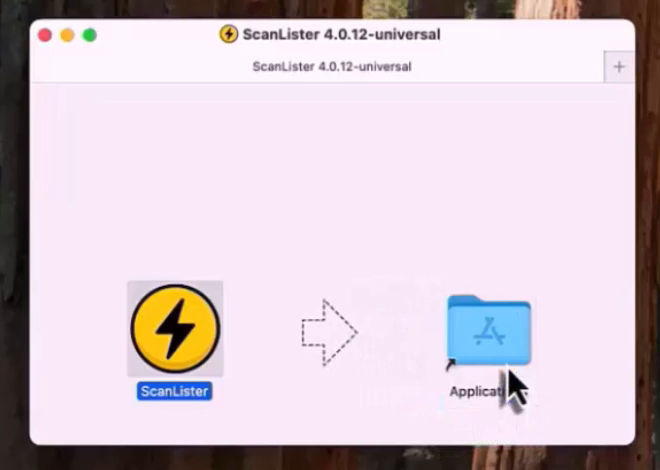
Open your Applications folder and double-click ScanLister.
.png)
The first time you open ScanLister, macOS asks you to confirm you want to open an app downloaded from the internet. Click Open.
The first launch can take up to 20 seconds while your Mac checks the app. You may see a blank window during that time. That’s normal, so give it a moment instead of clicking again. After the first time, ScanLister opens quickly.
The key is in your welcome email.
.png)
Theme, Amazon account, pricing, label printer. You can skip any of it, since everything is also in Settings.
On the first launch it can take up to 20 seconds to open. Wait before double-clicking again, since opening it several times can slow it down further.
Check that your Mac is on macOS Monterey (version 12) or later. Click the Apple menu, choose About This Mac, and look at the version number. If it’s older, update macOS from System Settings → General → Software Update (on older versions, System Preferences → Software Update), then try again.
Open System Settings → Privacy & Security, scroll down, and click Open Anyway next to the ScanLister message. Then open ScanLister again.
Open Finder and check Downloads for ScanLister.dmg. If it isn’t there, click Download for Mac at the top of this page again.
No. Once ScanLister is in Applications, you can eject the ScanLister disk from the Finder sidebar and delete the .dmg file.
Those answers are the same on Mac and Windows. See the common questions in Installing ScanLister on Windows.
