This guide walks through one complete FBA run in ScanLister: set your defaults, add your items, build the shipping plan, pack the boxes and print the labels, all without leaving the app. It uses four screens: List, Listing Manager, Box Contents and Shipping.
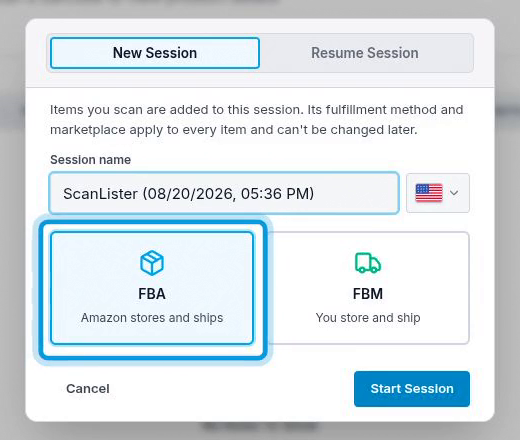
Decide up front whether this batch is FBA or FBM. You pick that when you start the listing session, and you cannot change it later without starting a new session.
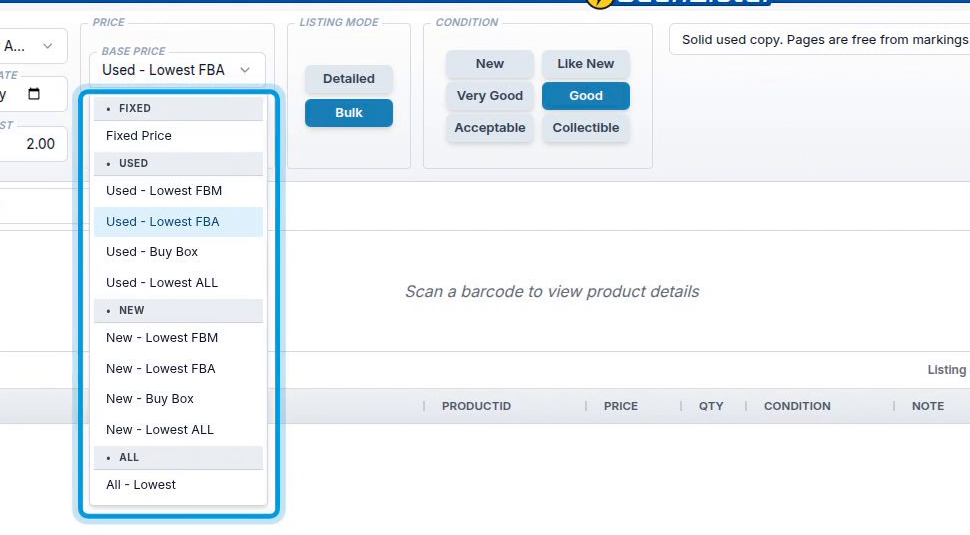
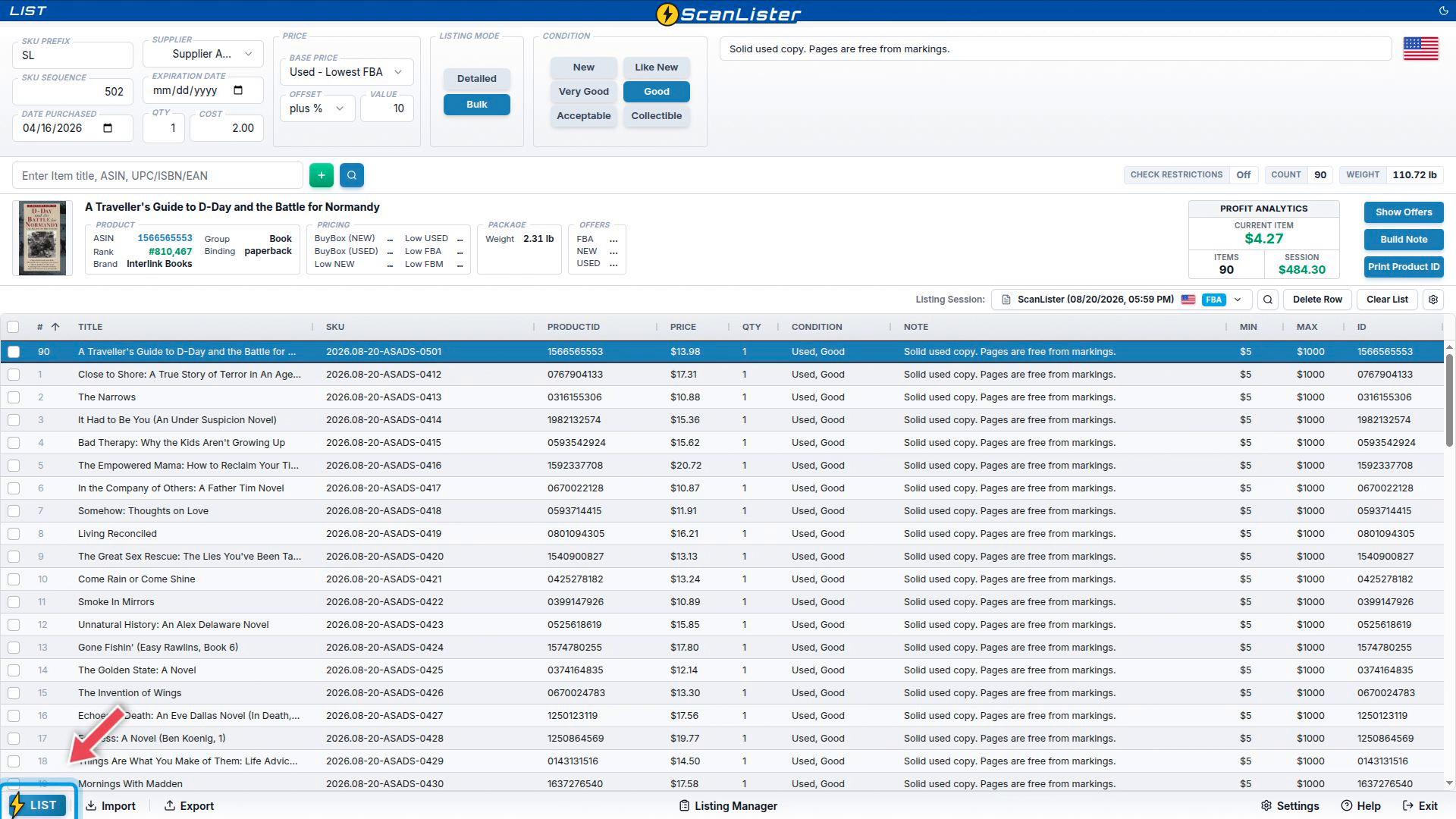
Everything in the panel across the top of the List screen is applied to the next item you add, so set it before you scan rather than fixing rows afterwards.

Work left to right:


Check Restrictions sits on the row below. Switch it On and ScanLister checks each item against your selling restrictions as you scan. Each scan takes a little longer, but you will not list things you cannot sell.

A session is the batch you are listing. Click Create/Resume Listing Session on the right of the toolbar. New Session starts a fresh batch; Resume Session picks up one you left unfinished.
On New Session:
Then click Start Session. The fulfillment method and marketplace apply to every item in the session and cannot be changed later. Once the session is running, the toolbar shows its name with an FBA or FBM badge.
There are three ways to add items, and they all land in the same list.
Click in the Enter Item title, ASIN, UPC/ISBN/EAN box and scan. While ScanLister looks the item up, the box shows that it is processing. Then the product panel fills in: cover image, title, ASIN, sales rank, Buy Box and lowest prices, weight, dimensions, size tier and offer counts. The item drops into the list with your SKU, price, condition and note already applied.


Type words instead of an ID and click the magnifying glass. Catalog search lists the matches with cover, ASIN, brand, category, binding and sales rank. Use the arrow keys to move, Enter to pick, and Esc to cancel.

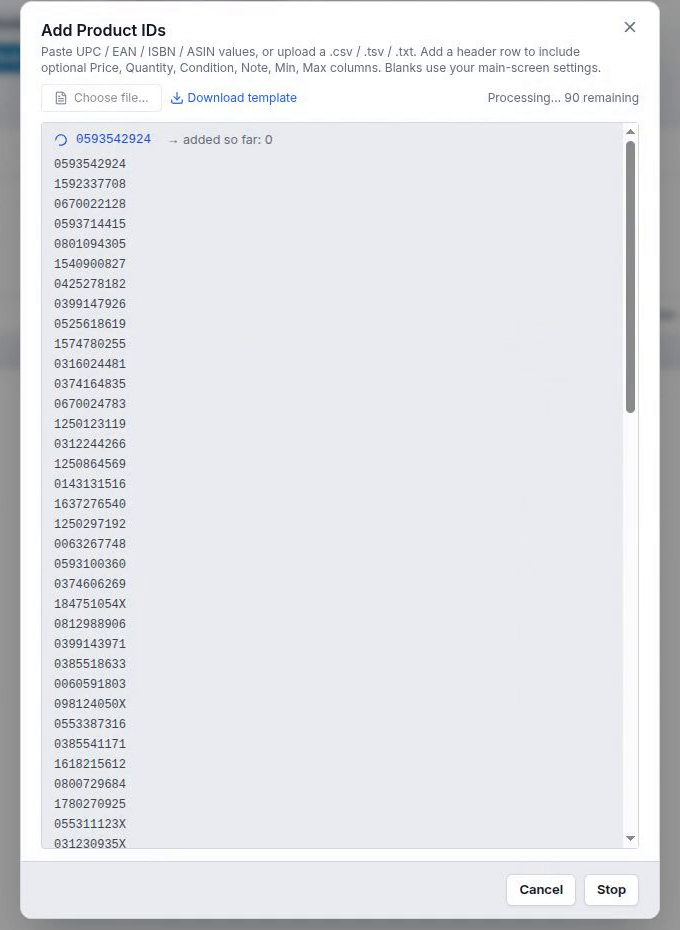
Click Import at the bottom left to open Add Product IDs. Paste a column of UPC, EAN, ISBN or ASIN values, or upload a .csv, .tsv or .txt file. Add a header row to set Price, Quantity, Condition, Note, Min or Max per line; anything left blank uses your defaults. Download template gives you the file format. A running count shows how many are left, and you can click Stop part way.
As items go in, the toolbar shows the item Count and total Weight, and Profit Analytics shows the profit on the Current Item alongside your Items and Session totals. To remove an item, tick its row and click Delete Row. Clear List empties the list.
When the list is complete, click Listing Manager at the bottom of the screen. Every session you have run is here, with its FBA or FBM badge, SKU and unit counts, how many are ready and how many failed, and four stage icons: SKU, FBA Plan, Box Contents and Shipment. Green means done, amber means in progress, and red means failed.
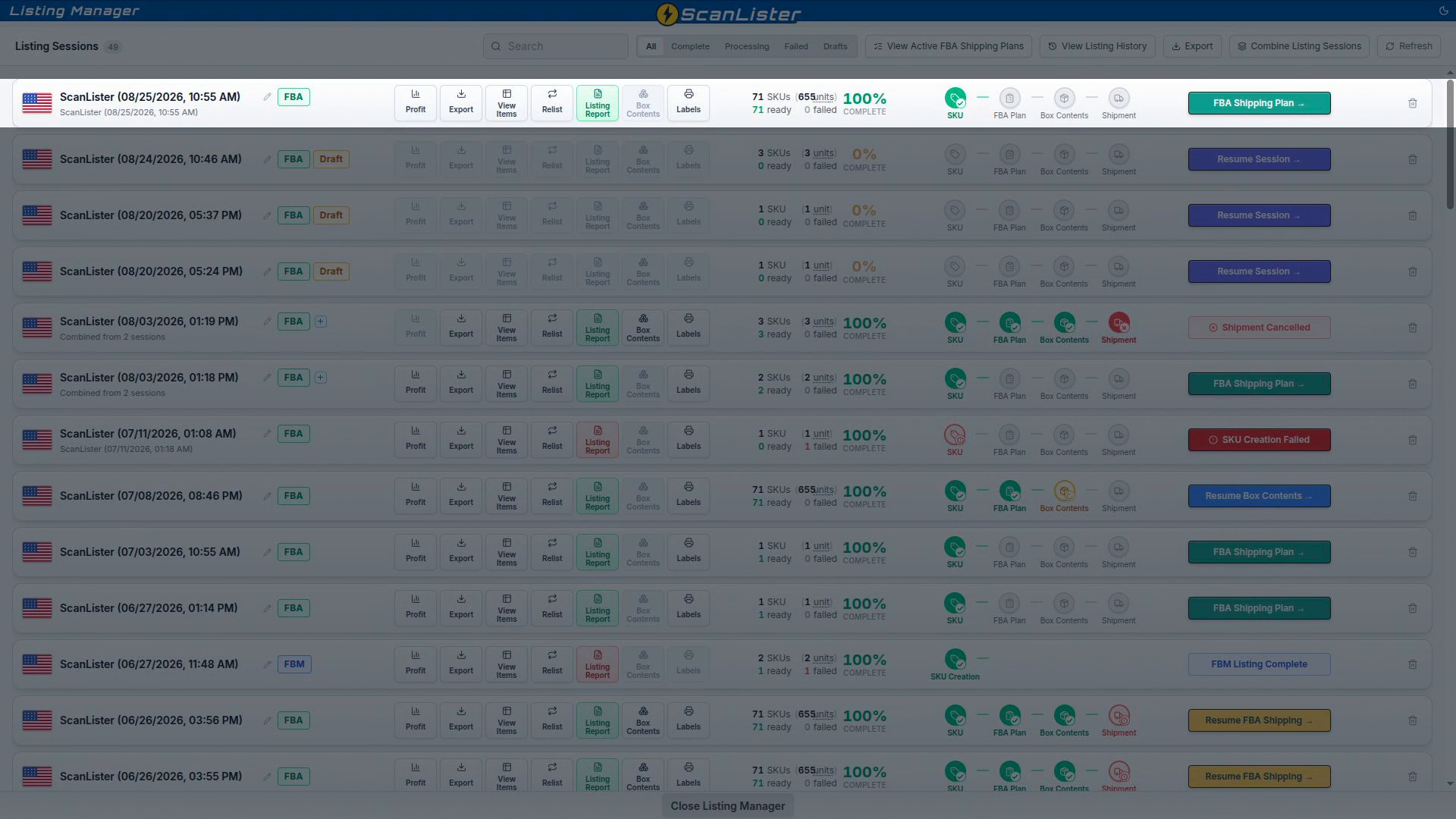
Wait for your session to reach 100% COMPLETE with the SKU stage green. Then click FBA Shipping Plan on the right of the row.
The other buttons on each row are Profit, Export, View Items, Relist, Listing Report, Box Contents and Labels. Across the top are View Active FBA Shipping Plans, View Listing History, Export and Combine Listing Sessions, which merges two batches into one shipment.
On the FBA Shipping Plan screen, review the items. Each line shows SKU, ASIN, FNSKU, title and quantity. Click Remove on anything you are not shipping. Removed lines stay visible, tinted red, so you can restore them. Check the Ship From address and click Change Address if it is wrong. Then click FBA Shipping Plan at the bottom.

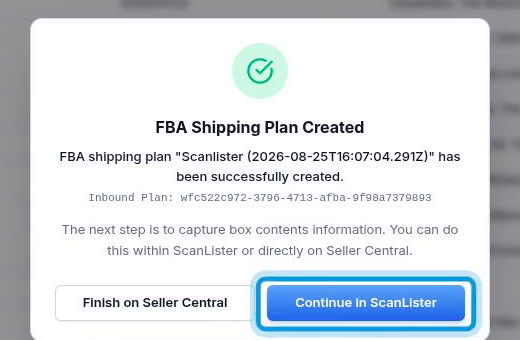
ScanLister confirms the plan with its inbound plan ID and offers two choices: Finish on Seller Central or Continue in ScanLister. Continuing in ScanLister keeps everything in one place, and the rest of this guide follows that path.
The Box Contents screen shows every item in the plan as a cover tile with its quantity, a row of boxes at the top, and a counter of how many units you have packed.
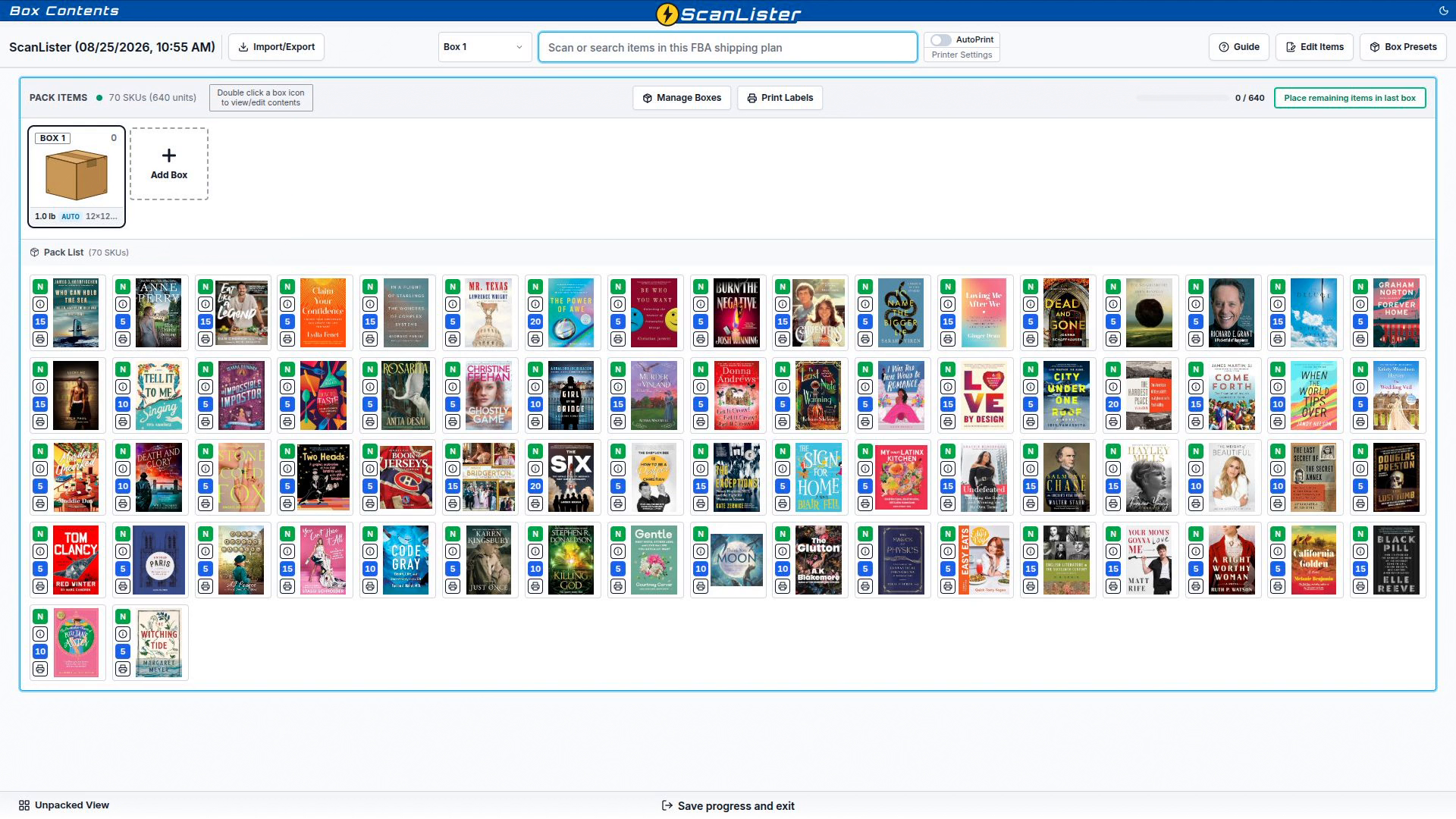
To pack:
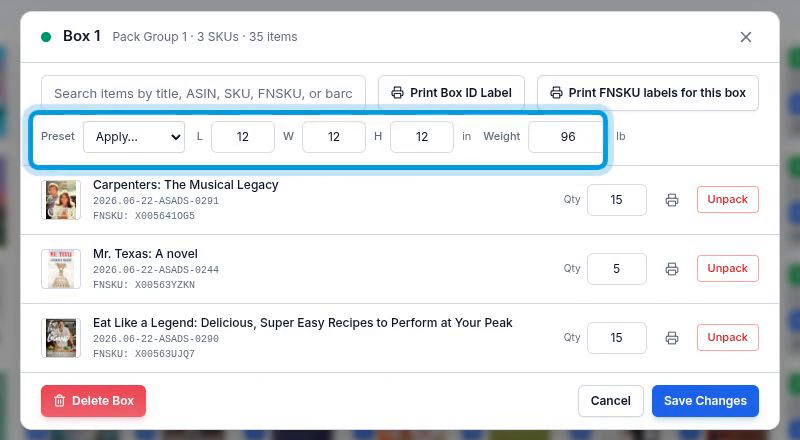
Manage Boxes and Print Labels at the top work on all boxes at once, and Box Presets saves box sizes you use often. To stop part way, click Save progress and exit and come back later.
When every unit is packed, a green banner says the items are ready. Click Confirm Packing.

The Shipping screen opens on Placement & Shipping. Set the Ship Date and check the Ship From address.
Under Pick a placement, Amazon offers several options. Each one shows how many shipments it splits into, the destination fulfillment center, when the quote expires, and the placement fee. The cheapest is tagged CHEAPEST. Fewer shipments usually cost more in placement fees but save you packing time, so weigh both. If a quote has expired, click Refresh quotes.
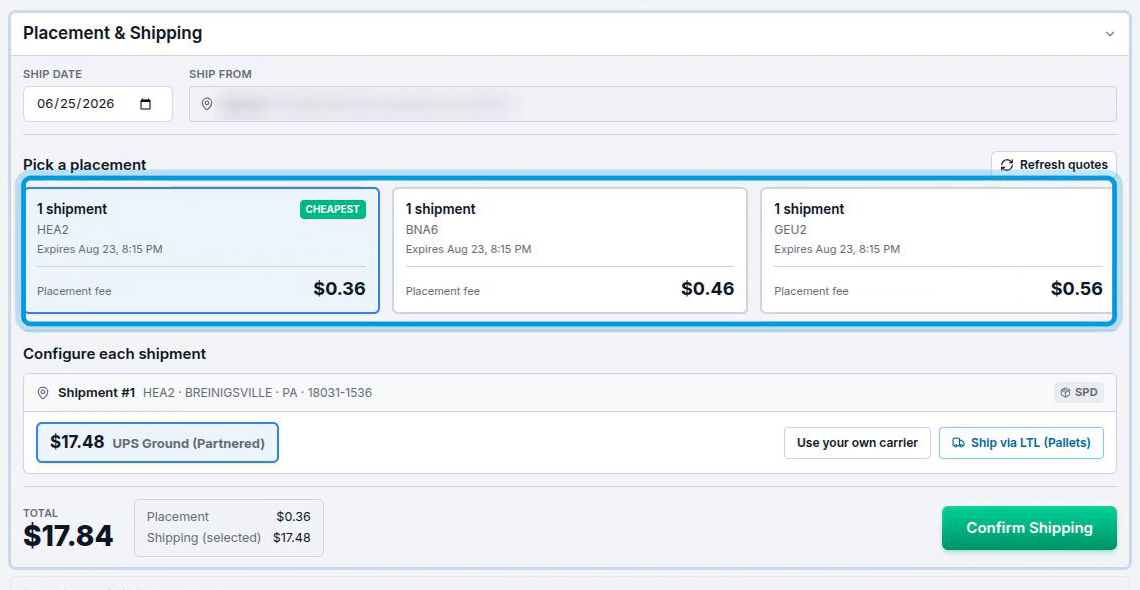
Under Configure each shipment, each shipment shows its destination and method with the partnered carrier rate beside it. You can switch to Use your own carrier or Ship via LTL (Pallets). The Total shows placement and shipping separately. When it looks right, click Confirm Shipping.
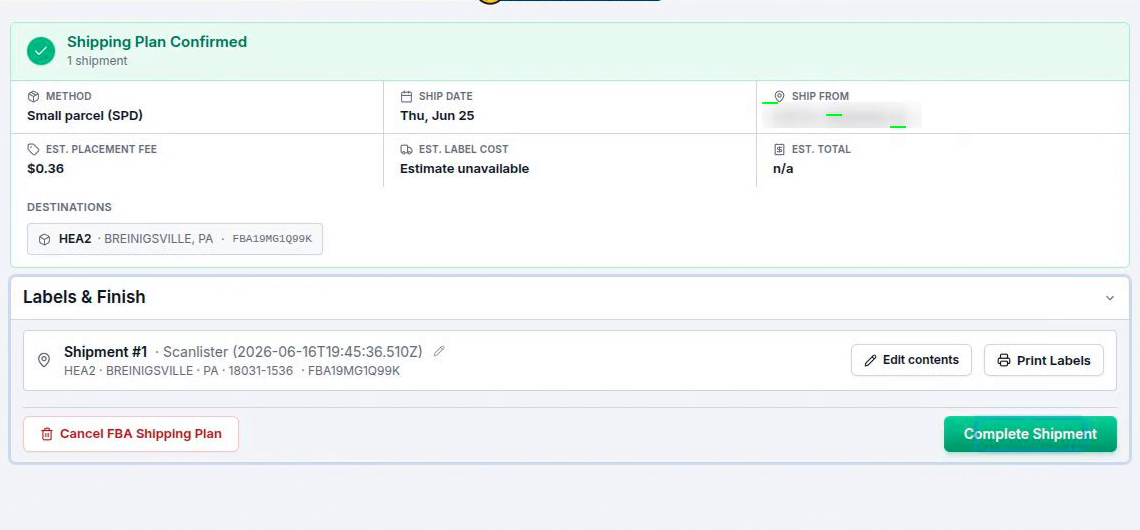
A green Shipping Plan Confirmed banner shows the method, ship date, ship-from address, placement fee, and the destination fulfillment center with its shipment ID.
In Labels & Finish, click Print Labels on the shipment. The preview shows the FBA box label with the UPS carrier label below it. Choose the Format, Select Printer, and set Copies and Pages. Save PDF keeps a copy, or Print using system dialog opens your own print settings. Print one label per box.
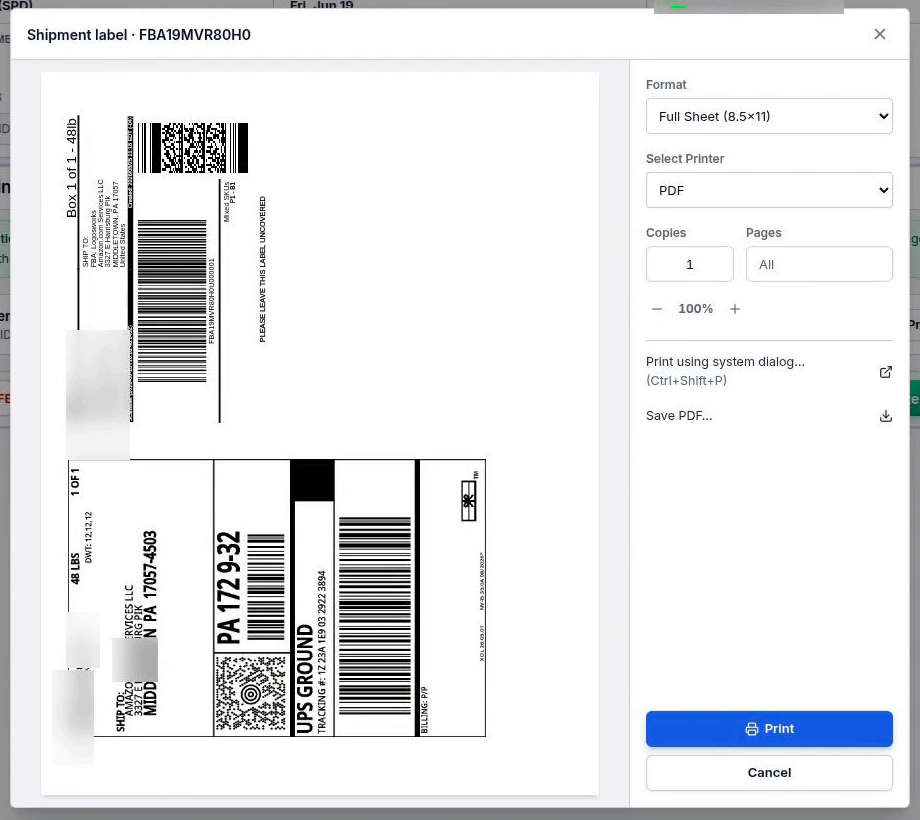
This panel also shows the cancellation window. Until it closes, you can still use Cancel FBA Shipping Plan or Edit contents. After that, the plan can no longer be canceled through ScanLister.
With the labels on the boxes, click Complete Shipment. Hand the boxes to UPS or schedule a pickup, and the session shows as finished in Listing Manager.