
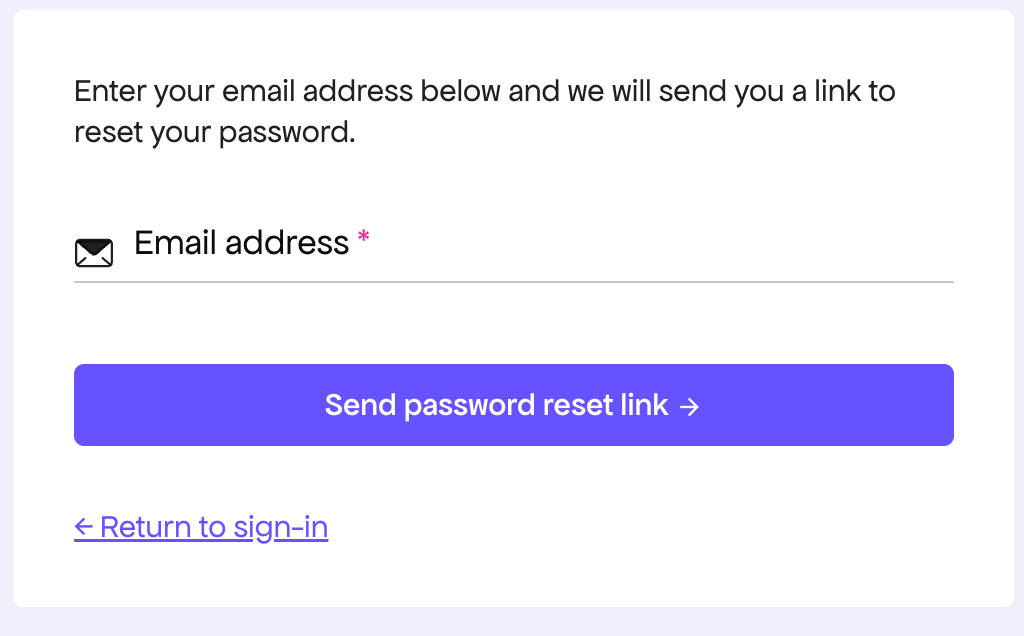
ScanLister’s customer portal moved to a new system, so the first time you sign in you may need to set a password. It takes a minute and you only do it once.
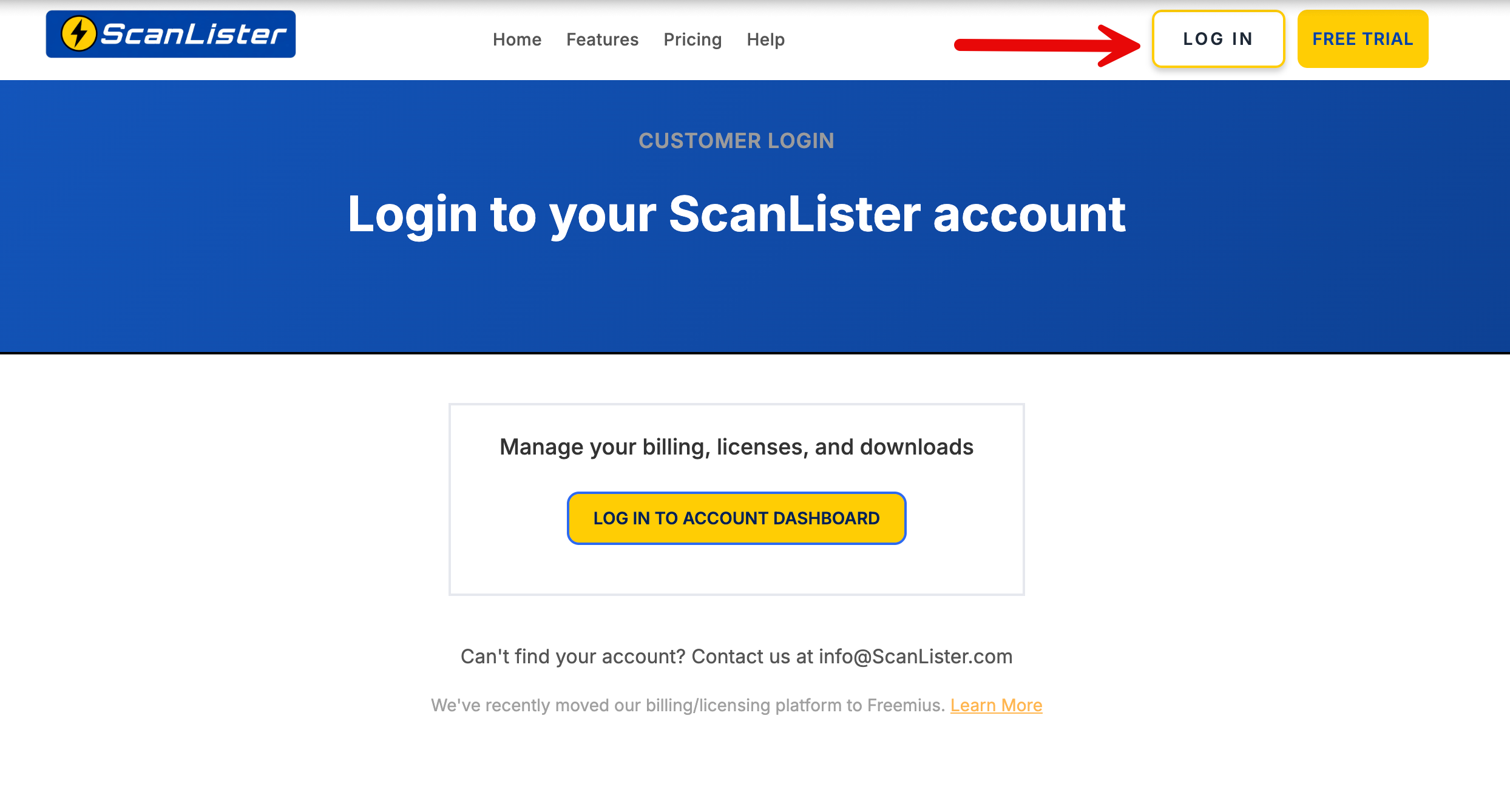
Sign in at scanlister.com/login, then select Log in to Account Dashboard.
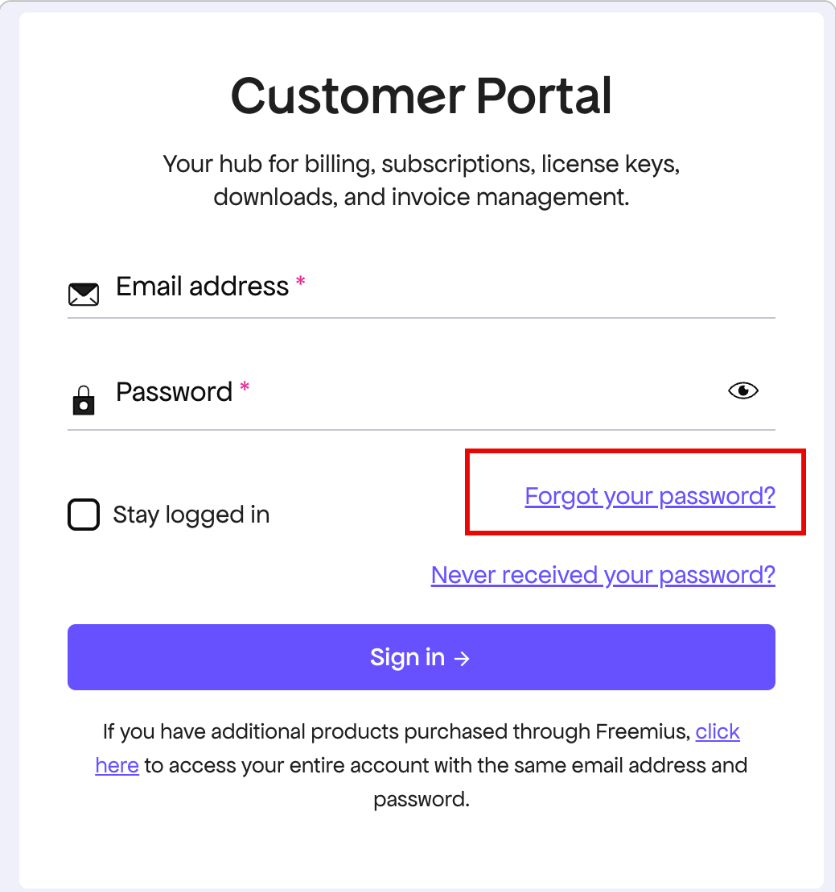
This is the address your licenses are attached to. A different one won’t find your account.
Once you’re in, you can manage your license keys and update your payment method.
ScanLister recently upgraded to a new billing and license management system powered by Freemius.
This gives customers improved account management features, including self-service license deactivation and reactivation.
You are still managing your ScanLister account and licenses — only the underlying customer portal has changed.
For more details about the migration, you can read our full update here: ScanLister Update: New Billing & License System — Freemius Migration.
