
You can change the card on file for your ScanLister subscription yourself, from the customer portal. It takes a minute, and the first payment after the change is prorated to your next renewal date.
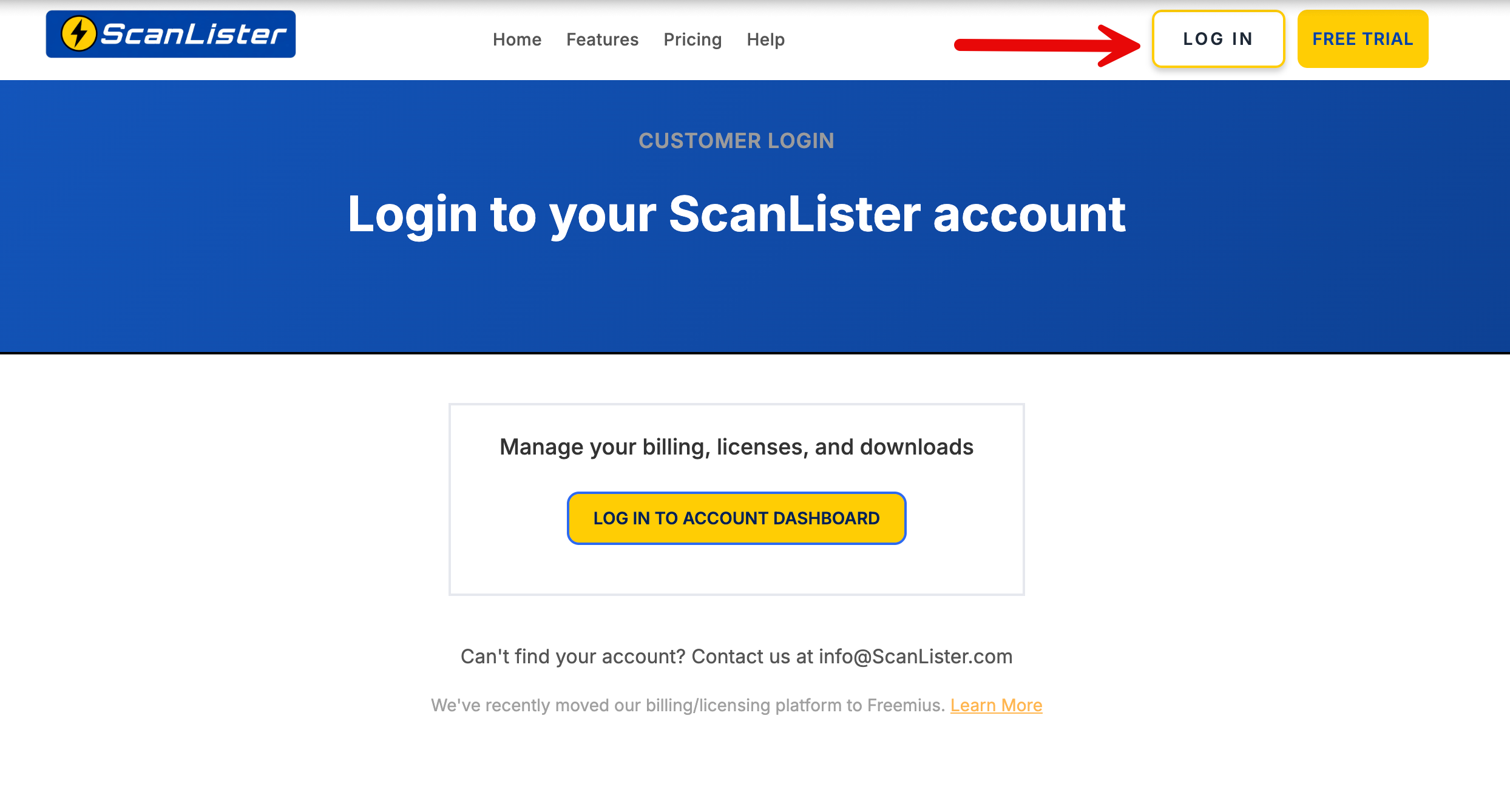
Sign in at scanlister.com/login, then select Log in to Account Dashboard.
Haven’t set a password for the new portal yet? How to Reset your Password walks you through it.
Go to the Subscriptions section to open the subscription’s advanced panel. Click Update next to the payment method, then check out with the new card.
The initial payment is automatically prorated based on your next renewal date.
ScanLister recently upgraded to a new billing and license management system powered by Freemius.
This gives customers improved account management features, including self-service license deactivation and reactivation.
You are still managing your ScanLister account and licenses — only the underlying customer portal has changed.
For more details about the migration, you can read our full update here: ScanLister Update: New Billing & License System — Freemius Migration.
