
From your browser’s downloads, or your Downloads folder.
Windows flags installers it hasn’t seen often. Publisher should read Book to the Future Inc.
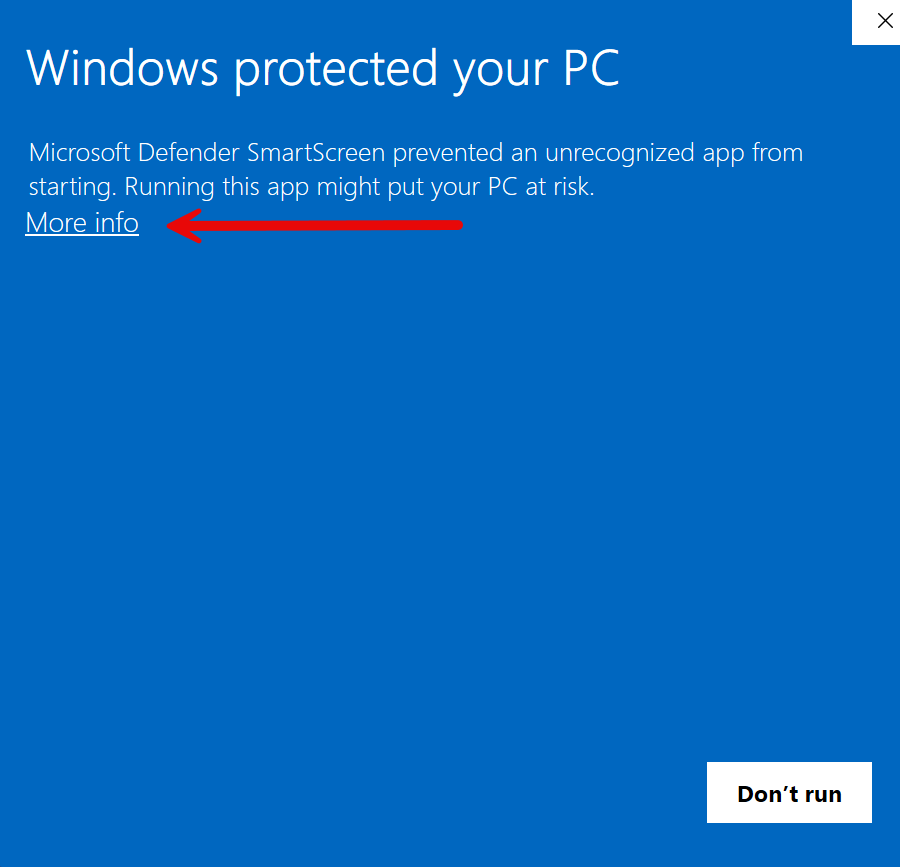
Leave Run ScanLister checked.
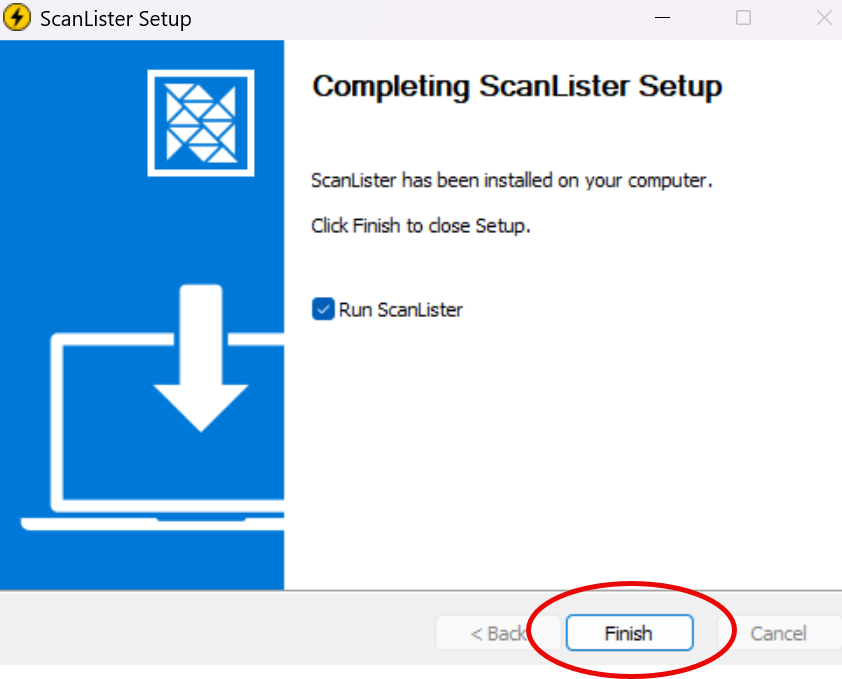
The key is in your welcome email.
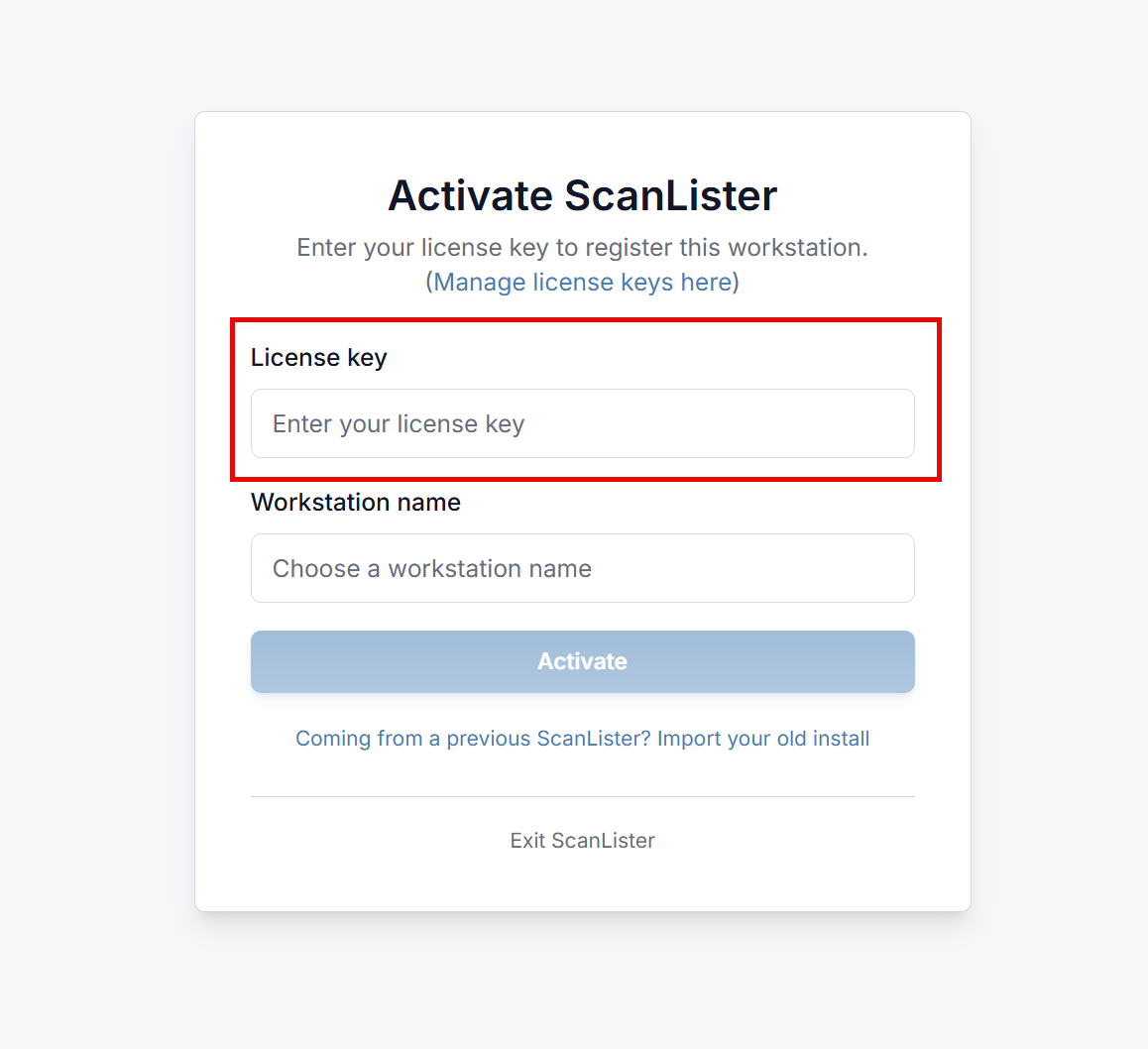
Theme, Amazon account, pricing, label printer. You can skip any of it, since everything is also in Settings.
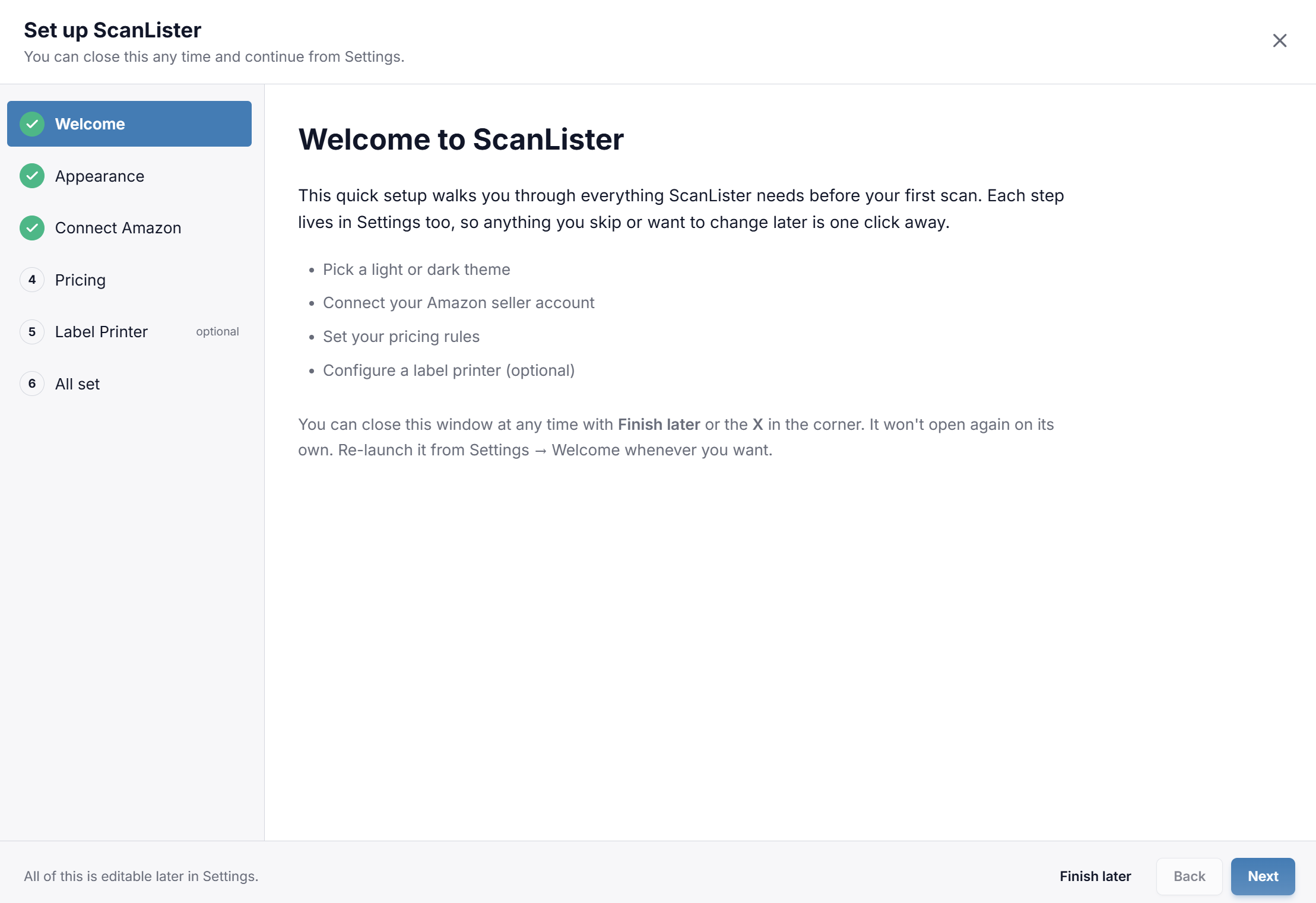
It stays hidden until you click More info on the blue screen. Click that, and Run anyway appears next to Don’t run.
If More info does nothing, the PC is probably managed by an employer with SmartScreen locked down. Your IT admin can allow the file.
Restore ScanLister-Setup.exe from quarantine or add it to the allowed list, then download it again and run it.
To confirm the file is genuine first: right-click it and choose Properties → Digital Signatures. The signature is Book to the Future Inc, of Coral Gables, Florida.
Press Ctrl + J to open your browser’s downloads and look for ScanLister-Setup.exe. If it isn’t there, click Download for Windows at the top of this page again. You can download it as often as you need.
In your welcome email. You can also click Manage license keys here on the activation screen to open your account, where every key is listed with the computers it’s on.
Yes, on up to 5 computers. Enter the same key on each and give each one a different workstation name.
If activation says the key is already in use, open Manage license keys here to see which computers are on it, and free the key from any you no longer use.
Keys issued before March 2026 work on one computer only. Those keys don’t start with sk_. Get in touch and we’ll move you to a current key.
On the activation screen, click Coming from a previous ScanLister? Import your old install to bring your settings across instead of starting fresh.
Nothing is lost. Every setup step also lives in Settings. Reopen the whole thing from Settings → Welcome.
Follow Installing ScanLister on Mac instead.
